Microsoft Entra ID
Scope: native Windows/IIS installation with SQL Server, a single OIDC provider, and a fresh install. Validated end-to-end on Windows/IIS. This section covers only what is Entra-specific; follow the Windows IIS installation guide for the install itself and Configuring Ed-Fi Admin App for the non-OIDC configuration.
Register the Entra application first — its issuer, client id, and secret go into the Admin App configuration during installation. Do not install the Admin App before completing Part A.
Prerequisites
- A Windows/IIS server with SQL Server prepared per the Windows IIS installation guide.
- Sufficient Microsoft Entra directory roles: Cloud Application Administrator (or higher) to create the App Registration, and Privileged Role Administrator or Global Administrator to grant admin consent in step A3. Cloud Application Administrator alone can create the app but cannot grant tenant-wide admin consent; if your account lacks that privilege, have a Global Administrator grant consent afterward.
- The host where the Admin App API is served — used in the redirect URI. In the two-site Windows/IIS layout this is the API site, for example
https://localhost:3443. - Your Entra Tenant ID.
- The email of the first admin user — it must equal the email Entra sends for that person. It is set as
ADMIN_USERNAMEduring installation, so decide it beforehand.
Part A — Register the application in Microsoft Entra ID
Instead of the manual steps below, you can script this entire section with idp-entra-setup.ps1 from the Admin App Installation Scripts repository (windows-install folder). Using the Microsoft Graph PowerShell SDK, it creates a single-tenant App Registration with the Web redirect URI, the email ID-token optional claim, the delegated openid/email permissions, and a client secret, and grants tenant-wide admin consent (or prints the exact manual consent URL when your account lacks the privilege). It outputs the client id, issuer, and redirect URI, and writes the secret to an ACL-restricted file — the values you need for Part B or the automated install.
It needs the same Entra roles as the manual path (see Prerequisites) plus the Microsoft Graph Application.ReadWrite.All scope, and does not require an elevated session.
# From the windows-install folder:
$r = .\idp-entra-setup.ps1 -DisplayName 'Ed-Fi Admin App' -TenantId '<tenant-id>'
By default the redirect URI targets https://localhost:3443/api/auth/callback/1; pass -ApiBaseUrl for a different API host, or -RedirectCallbackId <id> if the install reports an oidc row id other than 1. Run Get-Help .\idp-entra-setup.ps1 -Full for all parameters.
A1. Create the App Registration
-
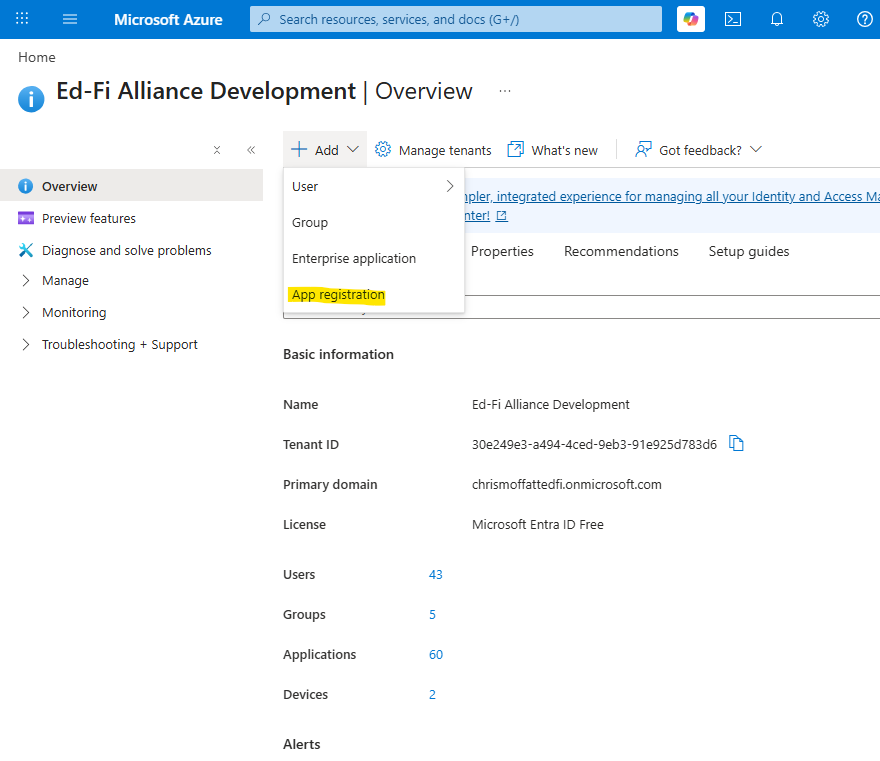
Azure portal → Microsoft Entra ID → App registrations → New registration.
-
Name: for example,
Ed-Fi Admin App v4. -
Supported account types: Accounts in this organizational directory only (single tenant).
-
Redirect URI: platform Web, value
https://<api-host>/api/auth/callback/<oidc-id>. For the two-site Windows/IIS layout the API host is the:3443site, for examplehttps://localhost:3443/api/auth/callback/1. -
Register, then from Overview copy the Application (client) ID and Directory (tenant) ID.
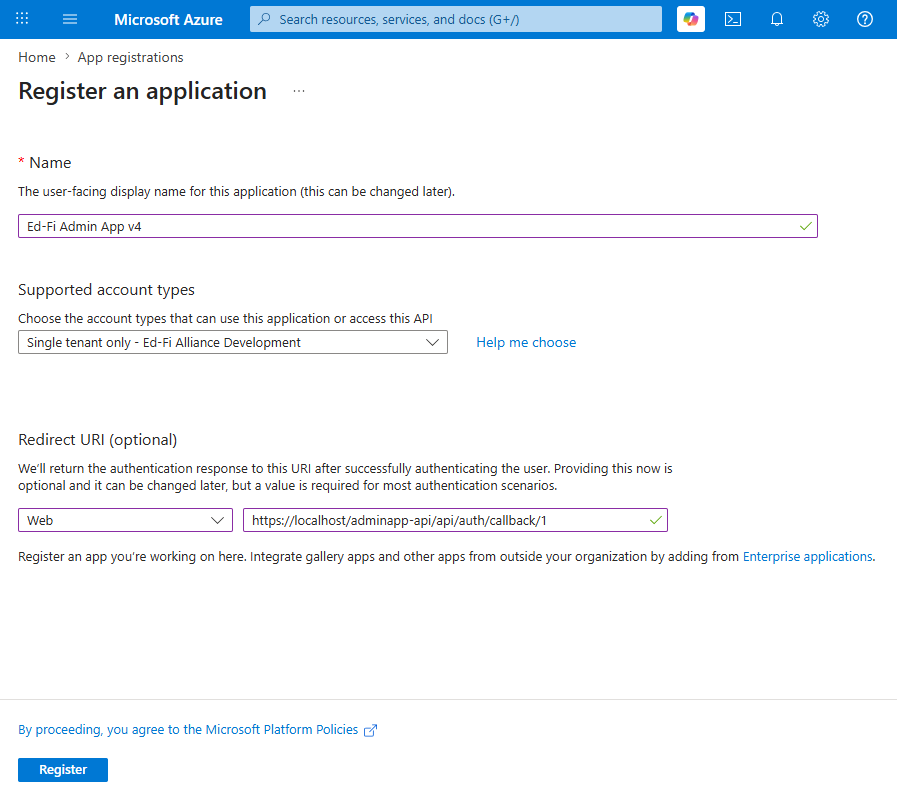
The redirect URI points at the API site, not the frontend. <oidc-id> is the oidc table row id; on a fresh single-provider install it is 1.
A2. Create a client secret
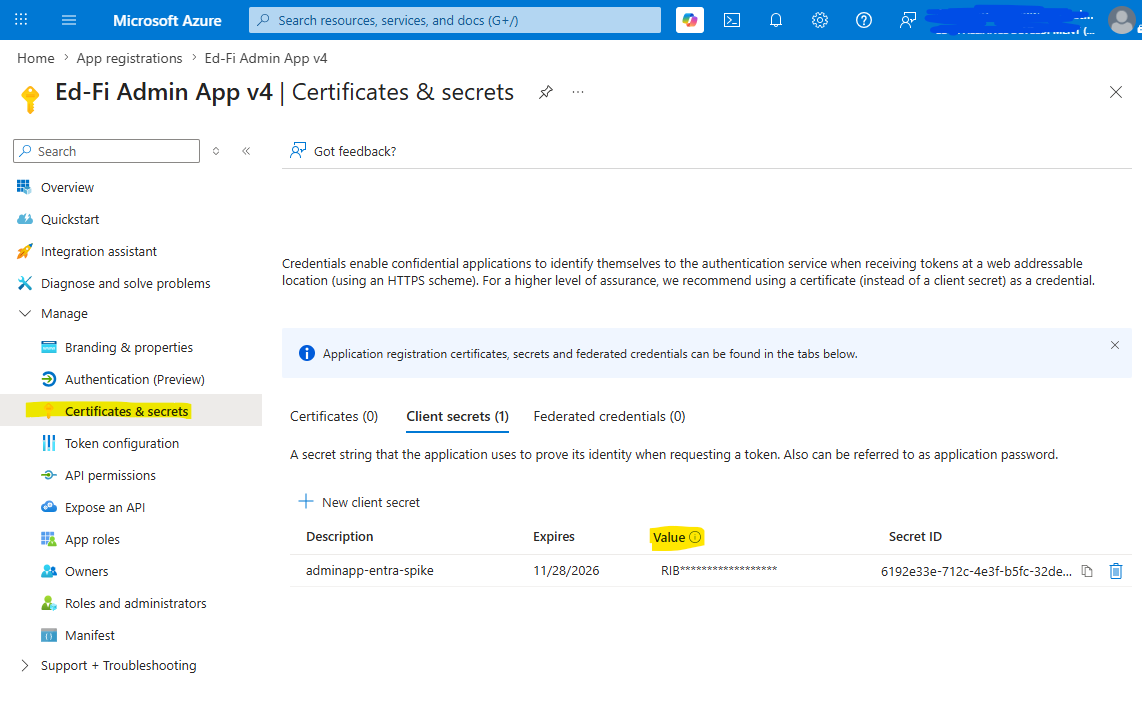
- Certificates & secrets → Client secrets → New client secret → set a description and expiry → Add.
- Copy the secret Value immediately (shown only once) — this is the
clientSecret. (Ignore "Secret ID".)
A3. API permissions
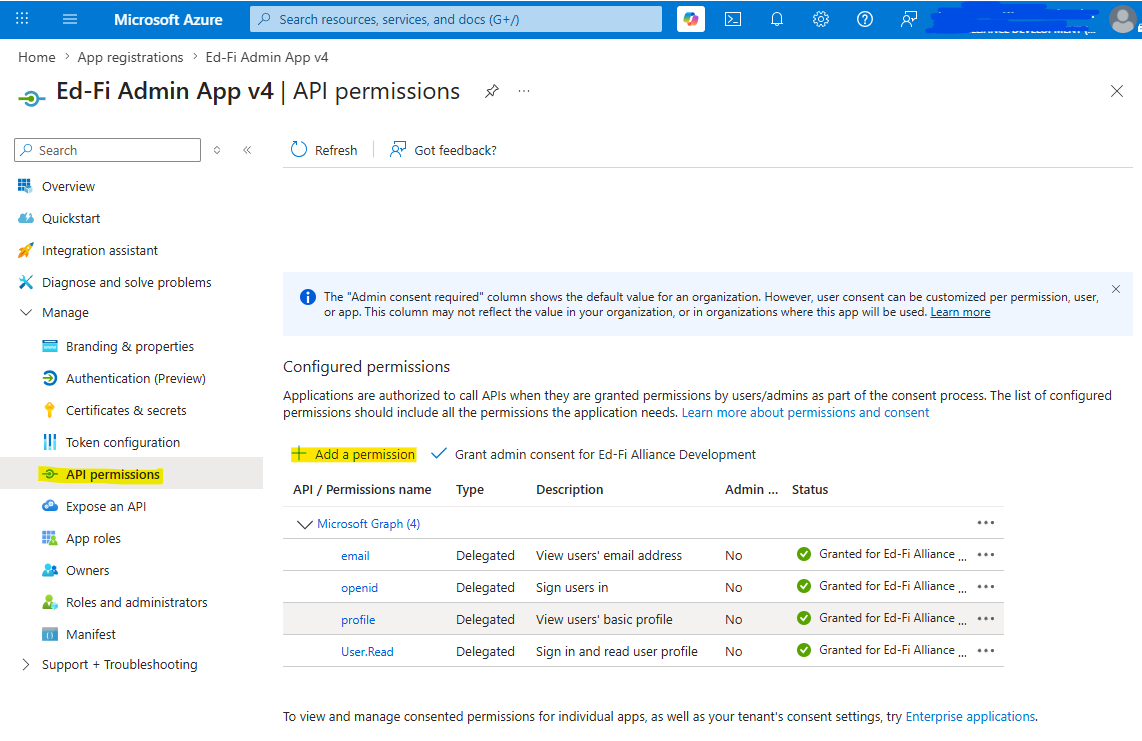
- API permissions → Add a permission → Microsoft Graph → Delegated permissions → add
openidandemail. - Grant admin consent for your directory; confirm the status shows "Granted".
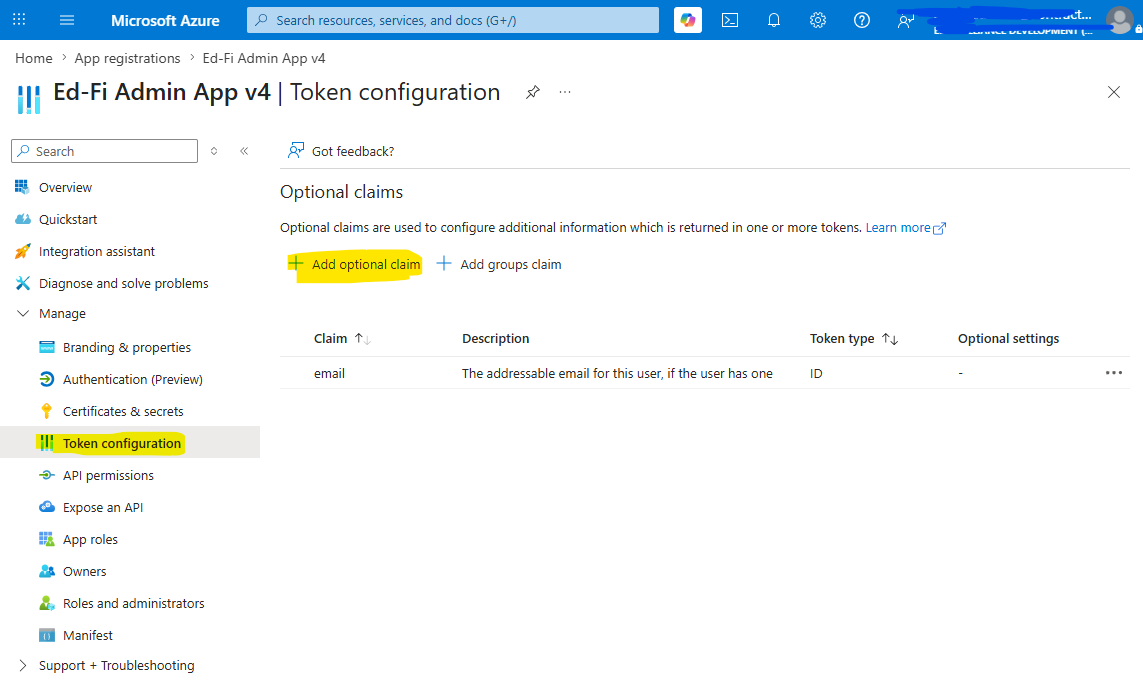
A4. Add the email optional claim (required)
Entra v2.0 does not emit the email claim by default, and the auth strategy rejects login with Invalid email from IdP when it is empty.
- Token configuration → Add optional claim → Token type: ID → check
email→ Add. - If prompted to enable the associated Microsoft Graph permission, accept.
Even with the optional claim, a directory user whose profile has no email may still send an empty email. Use an account with a real email address, or set the user's Email attribute in Entra.
Single-tenant vs. multitenant
This section uses single-tenant, the recommended model for on-premise deployments where each Implementation Partner runs its own Admin App against its own directory. The issuer is https://login.microsoftonline.com/<tenantId>/v2.0 and token validation is straightforward.
Multitenant is not supported out of the box: it uses the common endpoint, whose discovery document declares a templated issuer while tokens carry each user's real tenant id — which Admin App's strict issuer validation would reject. It also widens the sign-in surface to any Microsoft organization. A safe multitenant setup would need pattern-based issuer validation plus a tenant allowlist and tid validation, none of which exist today.
Part B — Configure the API (production.js)
Set the OIDC block in packages/api/config/production.js; the API seeds it into the oidc table on first startup. See Configuring Ed-Fi Admin App for the full file (database, encryption key, Yopass, and so on).
SAMPLE_OIDC_CONFIG: {
  issuer:       'https://login.microsoftonline.com/<tenantId>/v2.0',
  clientId:     '<appClientId>',
  clientSecret: '<clientSecret>',
  scope:        'openid profile email',
},
USE_PKCE: true,
// First admin: must match the email Entra sends for this person.
ADMIN_USERNAME: '<admin-email>',
Differences from the Keycloak example:
issuer→ the Entra v2.0 issuer, not a Keycloak realm URL.scope→openid profile email. Keycloak returns theemailclaim through its default client scopes even without an explicit scope, but Entra does not: without theemailscope the claim is absent and login is rejected withInvalid email from IdP.clientId/clientSecret→ the App Registration values from Part A.
A successful sign-in still fails with USER_NOT_FOUND unless a user with that email exists with a role. On a fresh install, startup seeding creates the admin from ADMIN_USERNAME with roleId 2 (Global admin) when the user table is empty. Roles for reference: 1 = Tenant user global, 2 = Global admin, 3 = Global viewer, 6 = Tenant admin, 7 = Tenant viewer, 8 = Standard tenant access.
Part C — Configure the frontend
Set the frontend build-time variables in packages/fe/.env (see Configuring Ed-Fi Admin App for the full set). Only two are provider-specific for Entra:
VITE_OIDC_ID=1— theoidcrow the login button targets (1on a single-provider fresh install; the shipped default).VITE_IDP_ACCOUNT_URL=https://myaccount.microsoft.com/— drives the Account → Account Management self-service link.
Do not point VITE_IDP_ACCOUNT_URL at portal.azure.com or entra.microsoft.com — those are admin consoles, not end-user self-service. These are build-time variables, so set them before npm run build:fe.
Part D — Validate end-to-end
- Start the API so it reads the
oidctable and registers the Entra strategy. - Open the Admin App in a clean browser at the frontend site, for example
https://localhost:4443. - Login redirects to Microsoft sign-in, then back through
/api/auth/callback/<oidc-id>into the app. - Confirm you land authenticated (no
Invalid email from IdP, noUSER_NOT_FOUND).
| Symptom | Cause | Fix |
|---|---|---|
Invalid email from IdP | email claim empty | Re-check A4 and that scope includes email; use an account with a real email |
USER_NOT_FOUND | admin not seeded with that email | Set ADMIN_USERNAME (Part B) |
NO_ROLE | user exists without a role | Assign a role (for example, roleId 2) |
redirect_uri mismatch (from Microsoft) | Entra redirect URI does not match the callback | Make them match exactly |
| Discovery error at API startup | wrong issuer | Confirm https://login.microsoftonline.com/<tenantId>/v2.0 |