Auth0
Scope: native Windows/IIS installation with SQL Server, a single OIDC provider, and a fresh install. Human login is validated end-to-end on Windows/IIS. This section covers only what is Auth0-specific; follow the Windows IIS installation guide for the install itself and Configuring Ed-Fi Admin App for the non-OIDC configuration.
Create the Auth0 application first — its domain (issuer), client id, and secret go into the Admin App configuration during installation.
Prerequisites
- A Windows/IIS server with SQL Server prepared per the Windows IIS installation guide.
- An Auth0 tenant where you can create Applications (and, for machine-to-machine access, APIs).
- The host where the Admin App API is served — used in the callback URL. In the two-site Windows/IIS layout this is the API site, for example
https://localhost:3443. - The email of the first admin user — it must equal the
emailclaim Auth0 sends for that person. It is set asADMIN_USERNAMEduring installation, so decide it beforehand.
The automated Windows install supports Auth0 natively: install-all.ps1 -IdpProvider auth0 validates discovery, writes the configuration (normalizing the issuer into the forms each setting expects, whichever slash form you pass), and prints the exact URLs to register in the Auth0 dashboard. Only Part A below remains manual — no script can provision the Auth0 tenant.
Part A — Create the application in Auth0
A1. Create a Single Page Web Application
-
Auth0 Dashboard → Applications → Applications → Create Application.
-
Name: for example,
Ed-Fi Admin App v4; type: Single Page Web Application → Create.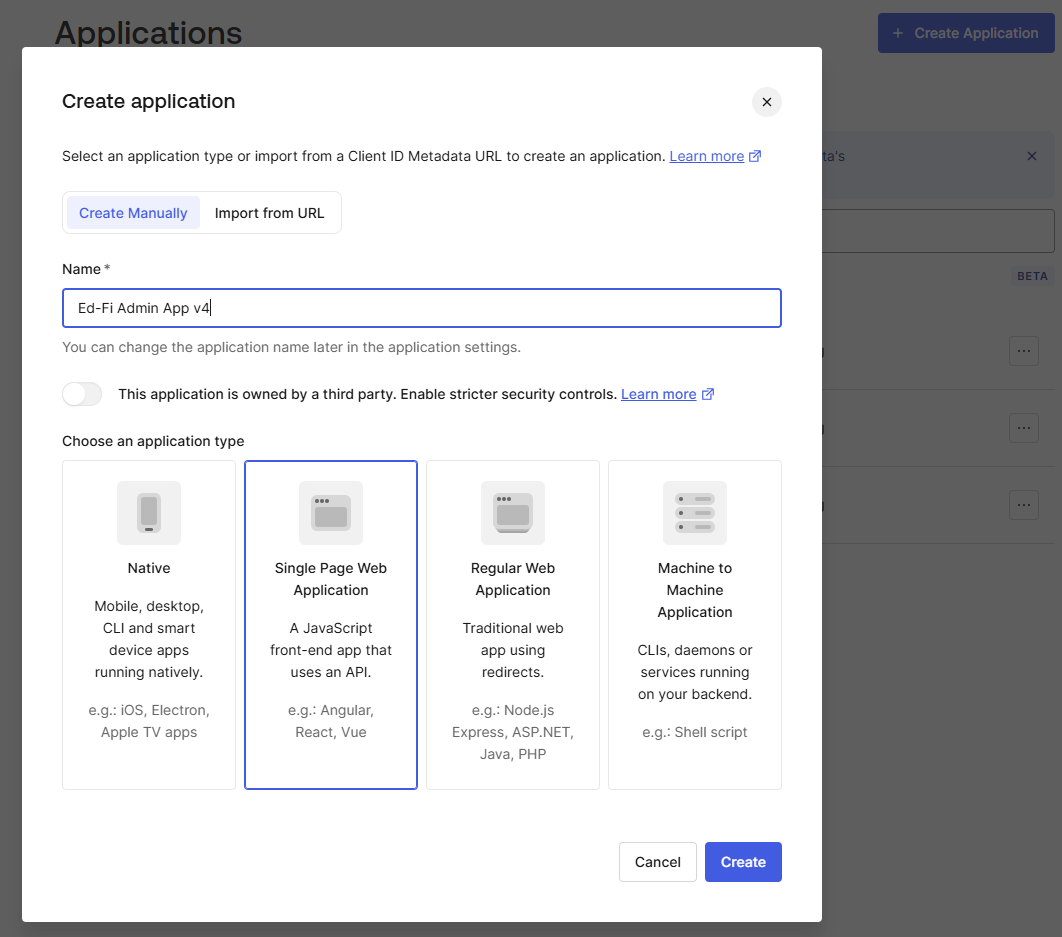
-
From the application's Settings tab, copy the Domain (e.g.
your-tenant.us.auth0.com— as a URL this is the issuer,https://your-tenant.us.auth0.com), the Client ID, and the Client Secret.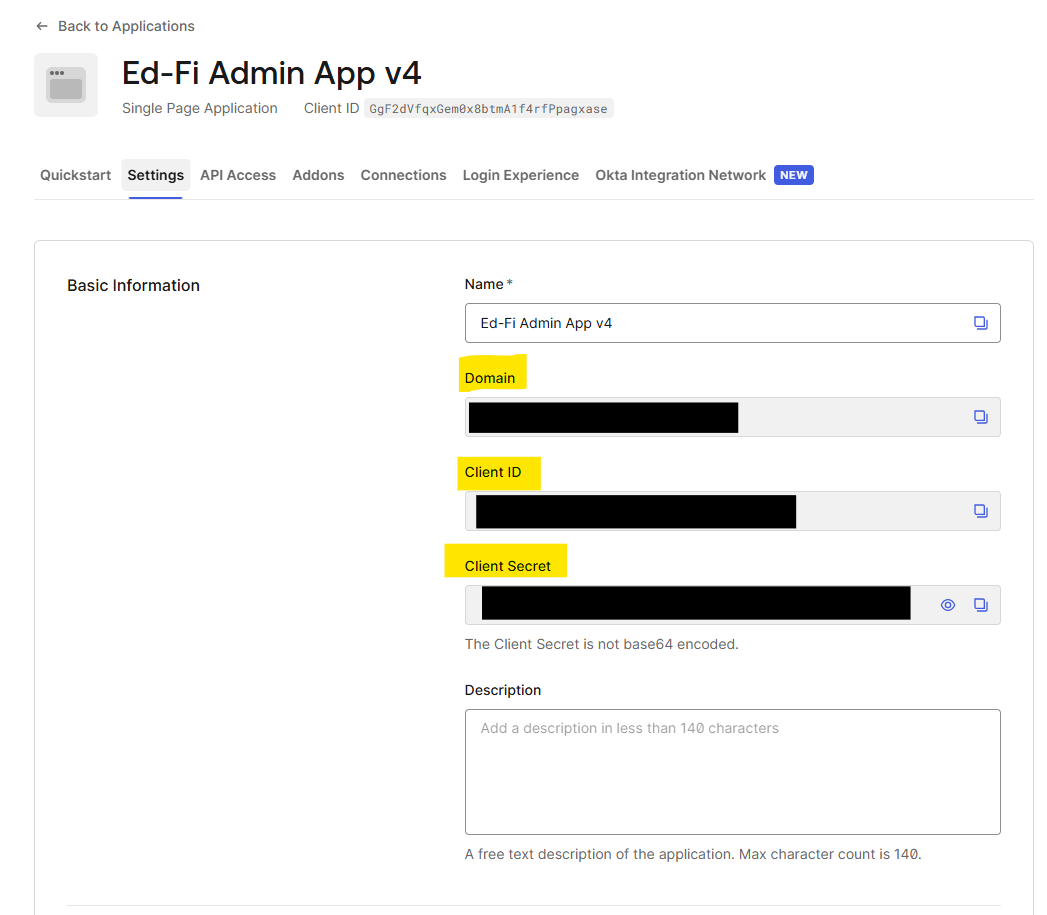
A2. Register the application URLs
Still on the application's Settings tab, set — Auth0 enforces these strictly, and mismatch errors surface as an Auth0 error page naming the offending URL:
| Auth0 field | Value (two-site Windows/IIS layout) |
|---|---|
| Allowed Callback URLs | https://<api-host>/api/auth/callback/<oidc-id> (e.g. https://localhost:3443/api/auth/callback/1) |
| Allowed Logout URLs | https://<api-host>/api/auth/post-logout |
| Allowed Web Origins | the frontend site (e.g. https://localhost:4443) |
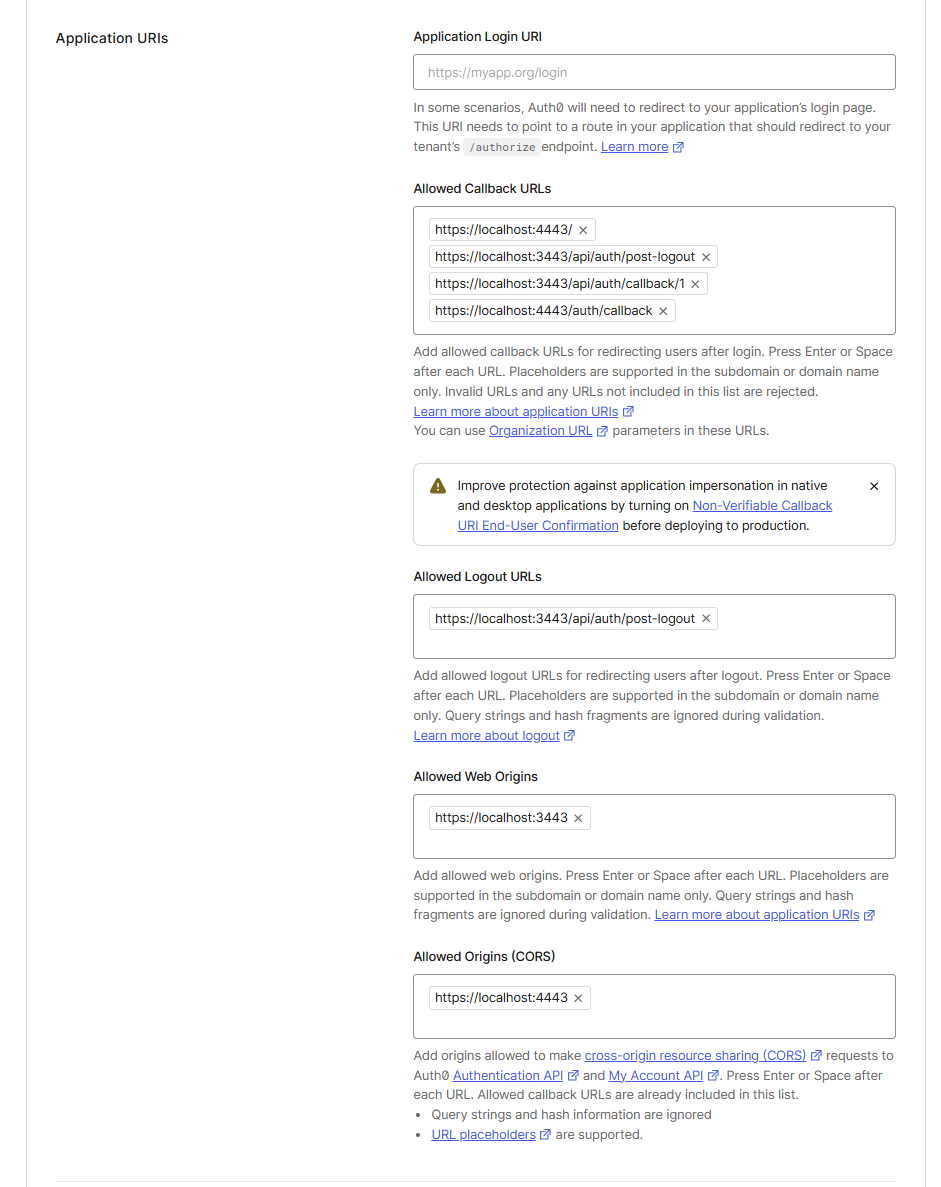
The callback URL points at the API site, not the frontend. <oidc-id> is the oidc table row id; on a fresh single-provider install it is 1.
A3. Users need an email address
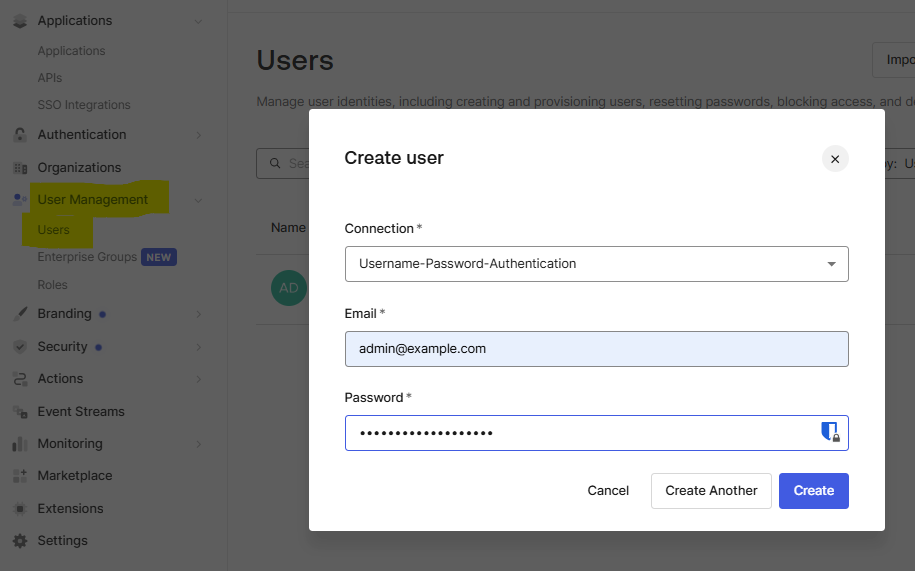
Every person who will log in must exist as an Auth0 user with an email address — the Admin App requires an email claim from the IdP and rejects login with Invalid email from IdP when it is missing. The email scope in Part B is what makes Auth0 emit the claim; database-connection users created with an email need nothing further. Create users under User Management → Users → Create User:
Part B — Configure the API (production.js)
Set the OIDC block in packages/api/config/production.js; the API seeds it into the oidc table on first startup. See Configuring Ed-Fi Admin App for the full file (database, encryption key, Yopass, and so on).
SAMPLE_OIDC_CONFIG: {
  issuer:       'https://your-tenant.us.auth0.com',   // NO trailing slash
  clientId:     '<application-client-id>',
  clientSecret: '<application-client-secret>',
  scope:        'openid profile email',
},
USE_PKCE: true,
// First admin: must match the email Auth0 sends for this person.
ADMIN_USERNAME: '<admin-email>',
Differences from the Keycloak example:
issuer→ the tenant URL (the application's Domain withhttps://), not a Keycloak realm URL — and without a trailing slash (a trailing slash breaks OIDC discovery; see the troubleshooting table in Part D).scope→openid profile emailis required: without theemailscope Auth0 omits the claim and login is rejected withInvalid email from IdP.clientId/clientSecret→ the Single Page Application values from Part A.
A successful sign-in still fails with USER_NOT_FOUND unless a user with that email exists with a role. On a fresh install, startup seeding creates the admin from ADMIN_USERNAME with roleId 2 (Global admin) when the user table is empty. Roles for reference: 1 = Tenant user global, 2 = Global admin, 3 = Global viewer, 6 = Tenant admin, 7 = Tenant viewer, 8 = Standard tenant access.
Part C — Configure the frontend
Set the frontend build-time variables in packages/fe/.env (see Configuring Ed-Fi Admin App for the full set). Only two are provider-specific for Auth0:
VITE_OIDC_ID=1— theoidcrow the login button targets (1on a single-provider fresh install; the shipped default).VITE_IDP_ACCOUNT_URL=https://your-tenant.us.auth0.com/— drives the Account → Account Management self-service link. Auth0 has no hosted end-user account page by default, so the tenant URL is a placeholder; point it at your own profile page if you have one.
These are build-time variables, so set them before npm run build:fe.
Part D — Validate end-to-end
- Start the API so it reads the
oidctable and registers the Auth0 strategy (look forRegistering OIDC provider https://your-tenant.us.auth0.com with id 1in the API log). - Open the Admin App in a clean browser at the frontend site, for example
https://localhost:4443. - Login redirects to Auth0 Universal Login, then back through
/api/auth/callback/<oidc-id>into the app. - Confirm you land authenticated (no
Invalid email from IdP, noUSER_NOT_FOUND).
| Symptom | Cause | Fix |
|---|---|---|
Invalid email from IdP (in the API log; the browser shows only a generic login-failure message) | email claim empty | Give the Auth0 user an email address; confirm scope includes email |
USER_NOT_FOUND | admin not seeded with that email | Set ADMIN_USERNAME (Part B) |
NO_ROLE | user exists without a role | Assign a role (for example, roleId 2) |
| Auth0 error page: "Callback URL mismatch" | Allowed Callback URLs does not match what the app sends | Register https://<api-host>/api/auth/callback/<oidc-id> exactly (A2) |
Error registering OIDC provider ... at API startup + Unknown authentication strategy "oidc-1" on login | trailing slash on the oidc row's issuer (discovery URL 404s) | Remove the trailing slash from SAMPLE_OIDC_CONFIG.issuer / the oidc row |
Machine-to-machine (M2M) access
Bearer-token access to the Admin App API (used by the Global Admin Quick Start and other automation) needs three Auth0-specific things beyond the human-login setup:
-
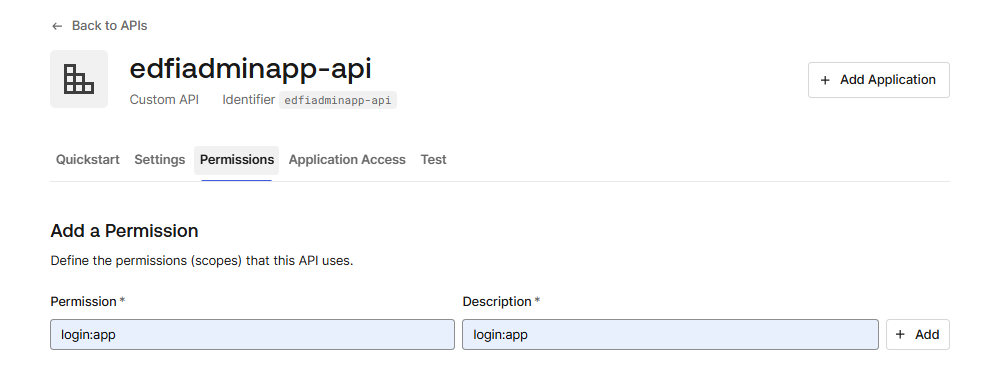
An Auth0 API (Dashboard → Applications → APIs → Create API) whose Identifier equals the Admin App's configured
MACHINE_AUDIENCE(defaultedfiadminapp-api), with alogin:apppermission defined. Leave the JSON Web Token (JWT) Profile at RFC 9068 (the default for new APIs): only that profile puts aclient_idclaim in client-credentials access tokens, and the Admin App keys the machine user on that claim — with the legacy Auth0 profile the token carriesazpinstead and authentication fails.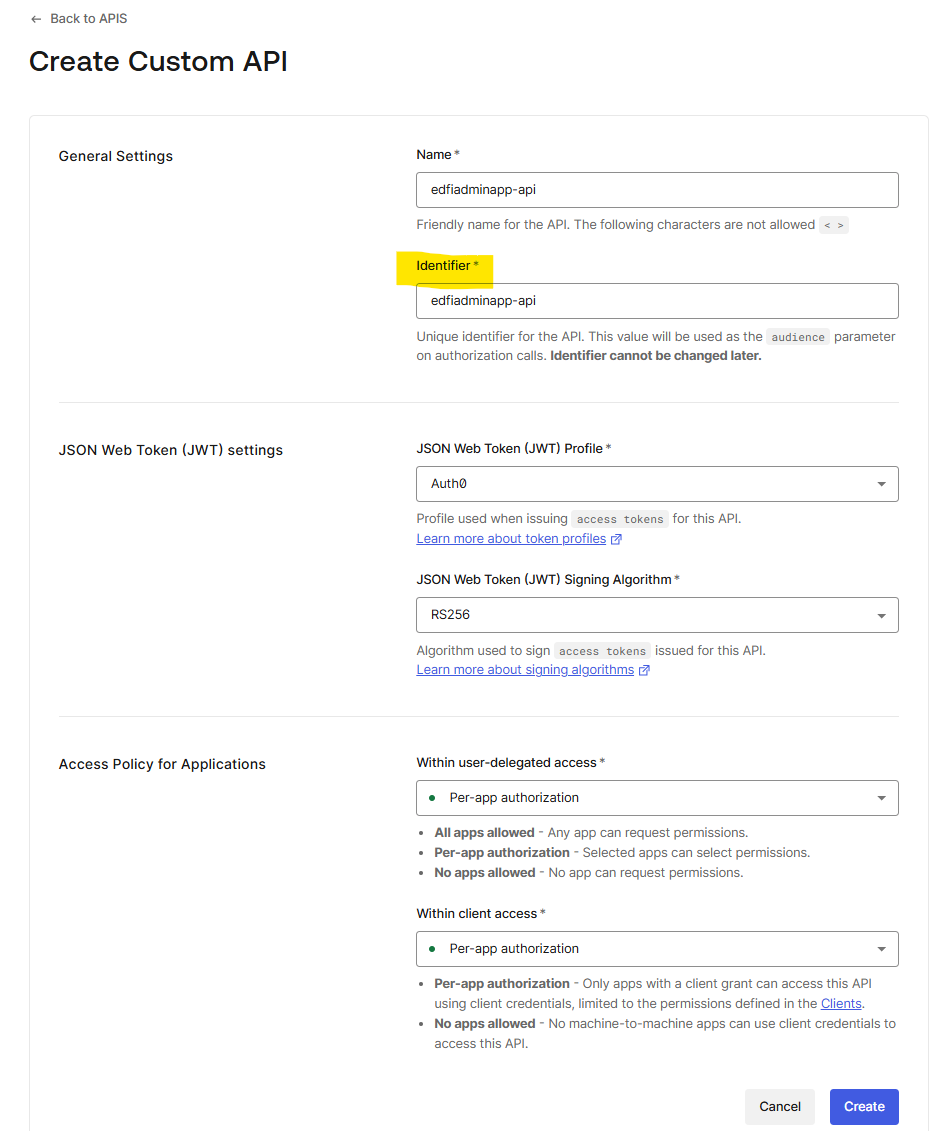
-
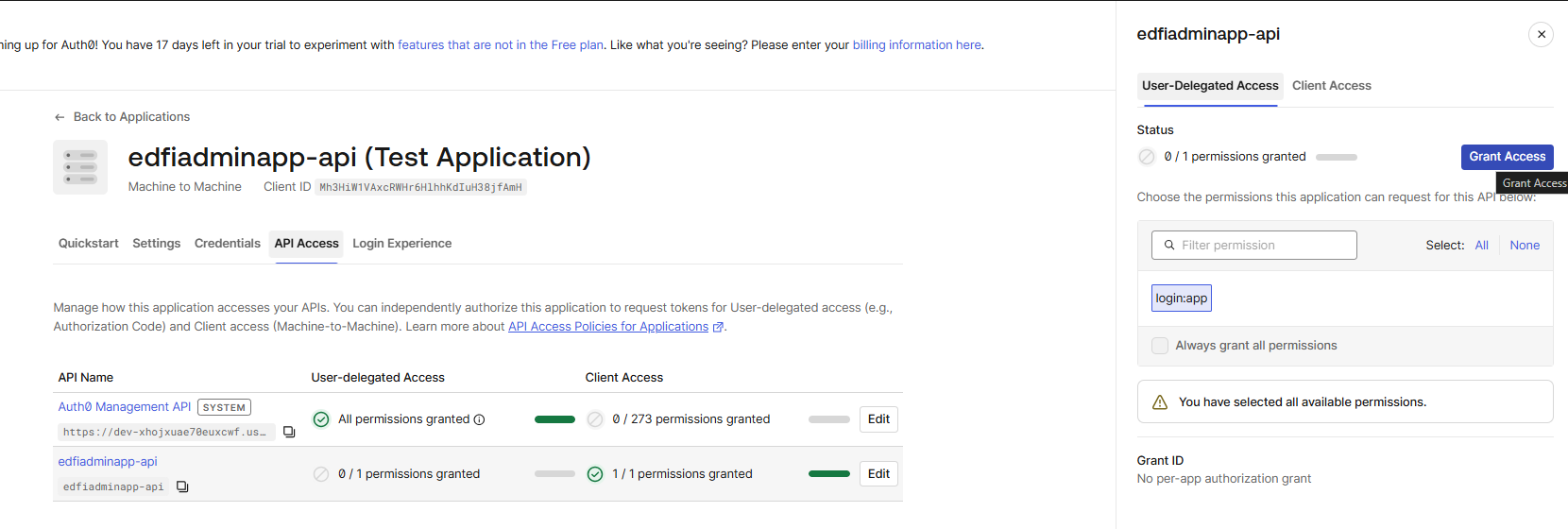
A Machine to Machine application, authorized for that API with the
login:apppermission granted. Its Client ID is what the machine user in the Admin App is keyed on.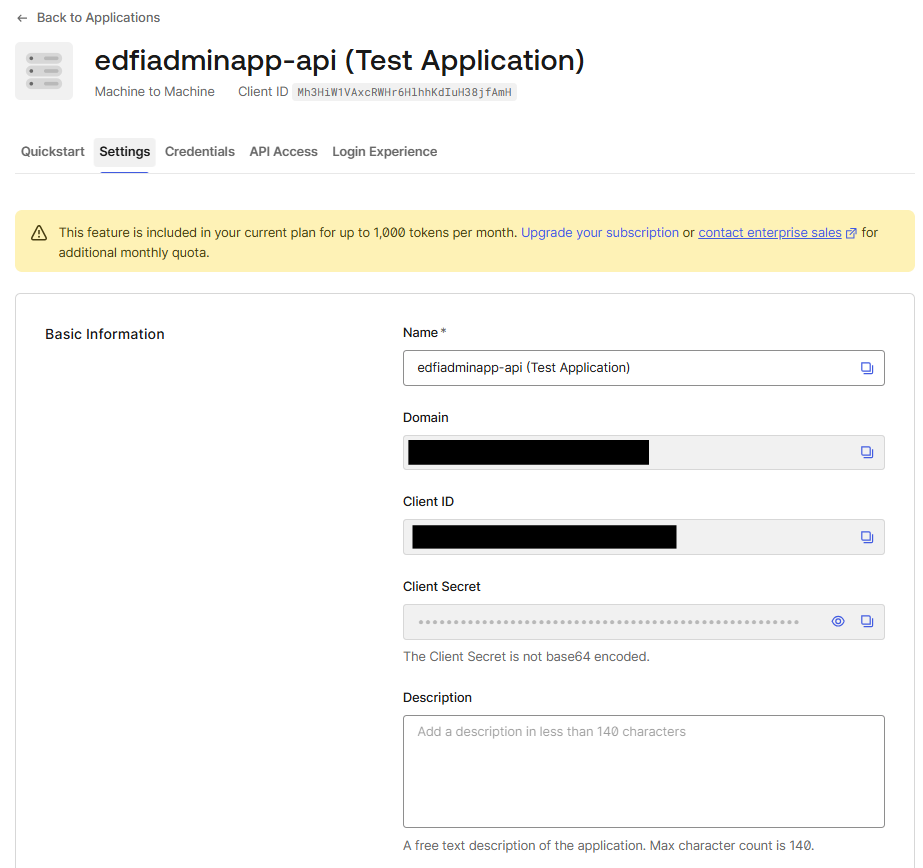
-
Token requests need an explicit audience: calls to
https://your-tenant.us.auth0.com/oauth/tokenmust pass anaudienceparameter equal to the API identifier — Auth0 requires it for the client-credentials grant, and without it the token does not carry the expectedaud. (The automated installer writesAUTH0_CONFIG_SECRET_VALUE.ISSUERfor you; if configuring it by hand, it must equal the token'sissclaim exactly — see the checklist below.)
If a bearer call returns 401, decode the token (for example at jwt.io) and check, in order: iss equals the configured ISSUER exactly (including the trailing slash), aud equals MACHINE_AUDIENCE, client_id is present and matches a machine user in the Admin App, and scope includes login:app. The Admin App identifies the machine client by the client_id claim only — azp is not used as a fallback. A token that carries azp but no client_id means the API is on the legacy Auth0 JWT profile; switch it to RFC 9068 (step 1 above). The quick start's bootstrap.ps1 -Provider auth0 (from the Admin App Installation Scripts repository) automates these checks against a real token, and the Quick Start appendix covers the general M2M troubleshooting flow.