Google Workspace
Scope: native Windows/IIS installation with SQL Server, a single OIDC provider, and a fresh install. Validated end-to-end on Windows/IIS. This section covers only what is Google-specific; follow the Windows IIS installation guide and Configuring Ed-Fi Admin App for the rest.
Google returns the email claim by default when the email scope is requested, so there is no optional-claim step. Create the OAuth client first — its client id and secret go into the Admin App configuration during installation.
Prerequisites
- A Windows/IIS server with SQL Server prepared per the Windows IIS installation guide.
- Google Workspace admin access to create the project under your organization and set the OAuth consent screen to Internal. The project must belong to your Workspace organization for the Internal audience to be available.
- The host where the Admin App API is served — used in the redirect URI, for example
https://localhost:3443. - The email of the first admin user — a user in your Workspace domain; it must equal the email Google sends. Set as
ADMIN_USERNAMEduring installation.
Part A — Create OAuth credentials in Google Cloud Console
Navigate via the left-hand menu (APIs & Services → Credentials); a direct link to the credentials page may not load reliably.
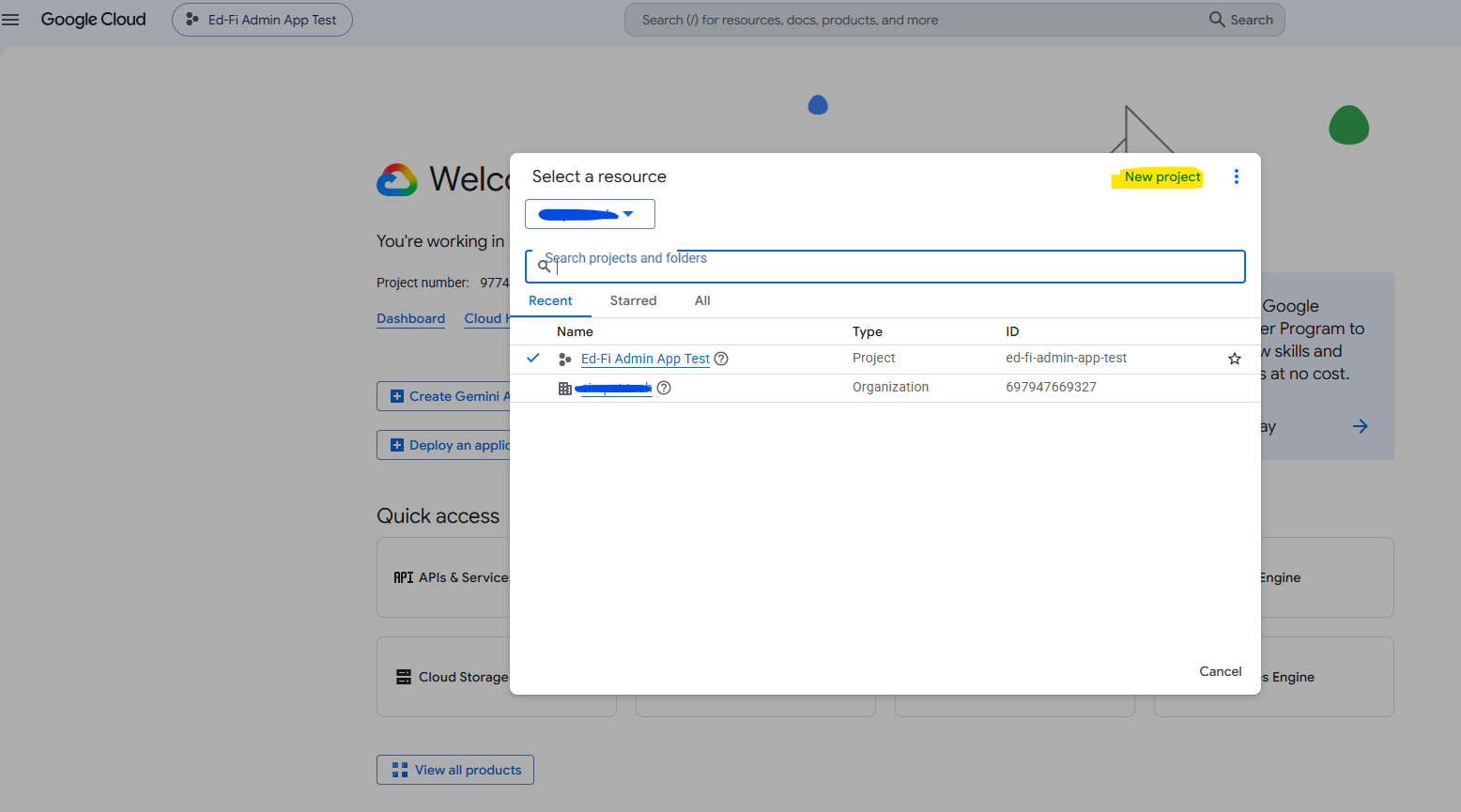
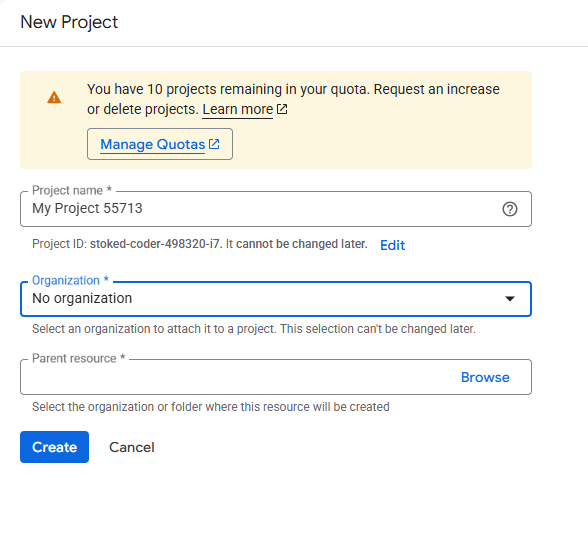
A1. Create or select a project
- Sign in to the Google Cloud Console.
- Create a new project inside your Google Workspace organization (or select one that already belongs to it). Org ownership is required so the Internal audience is available in the next step.
A2. Configure the OAuth consent screen
-
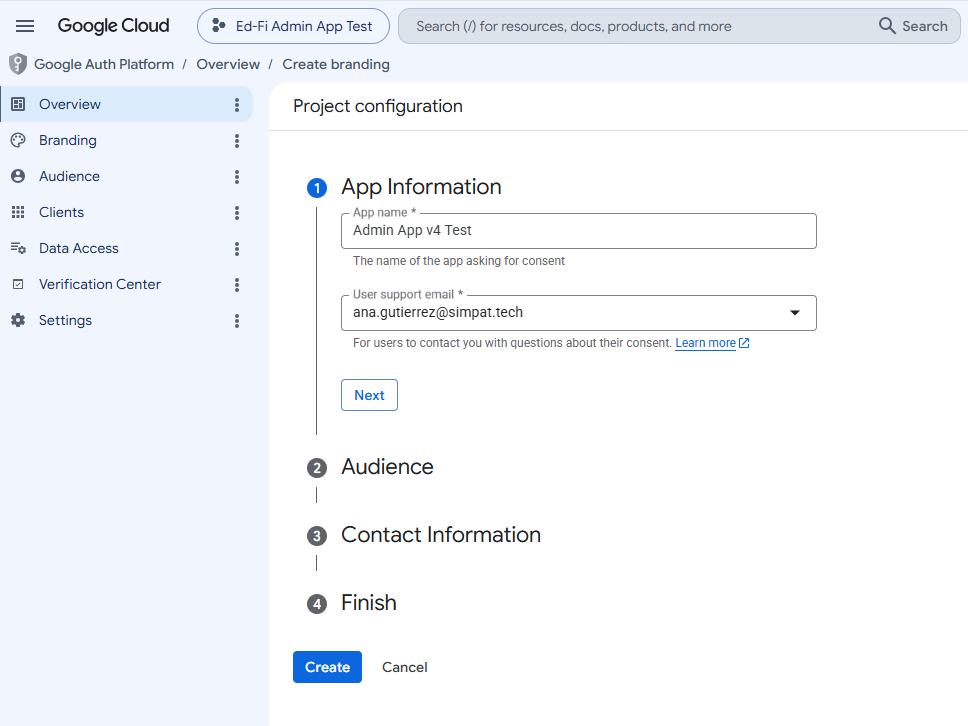
Go to APIs & Services → OAuth consent screen.
-
Fill in App name and User support email.
-
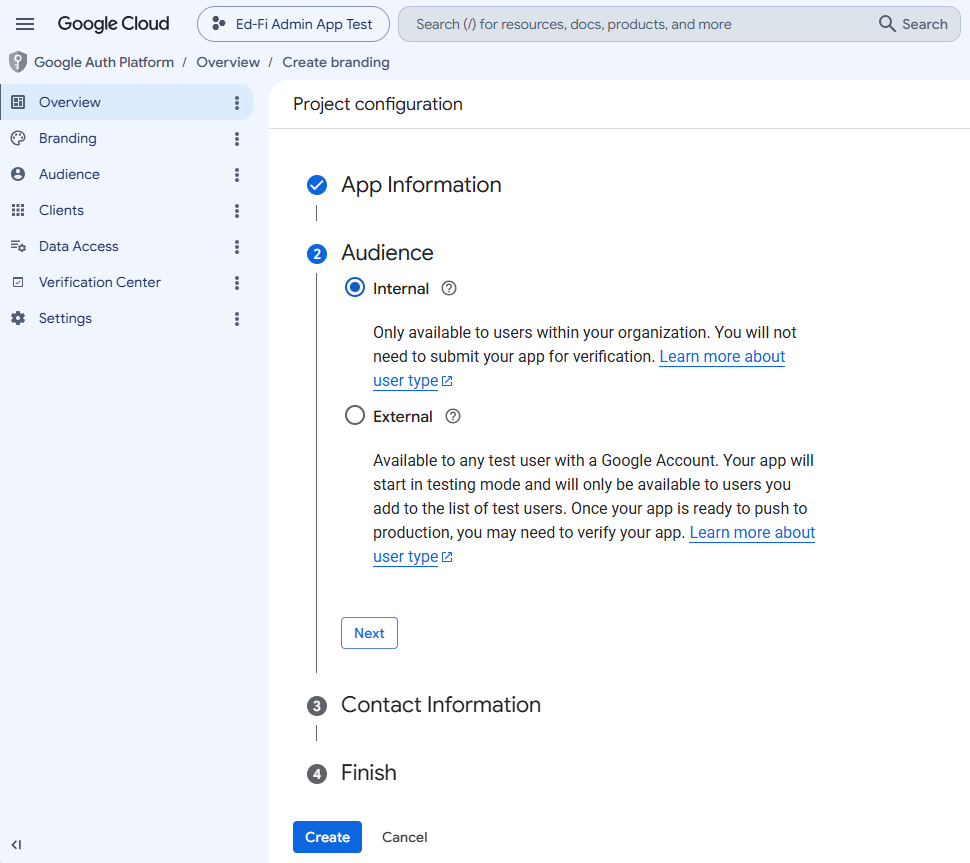
Audience: Internal — limits sign-in to your Workspace domain.
-
Provide the Contact information email (used only for Google notifications about the project; not shown to end users).
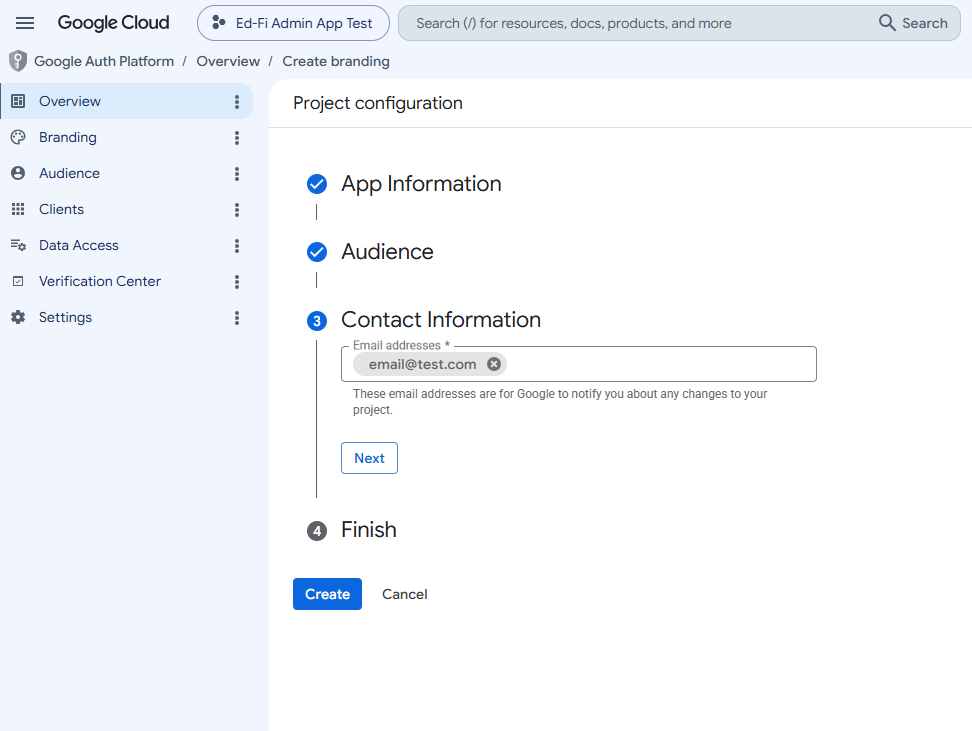
-
Accept the Google API Services policies and Finish.
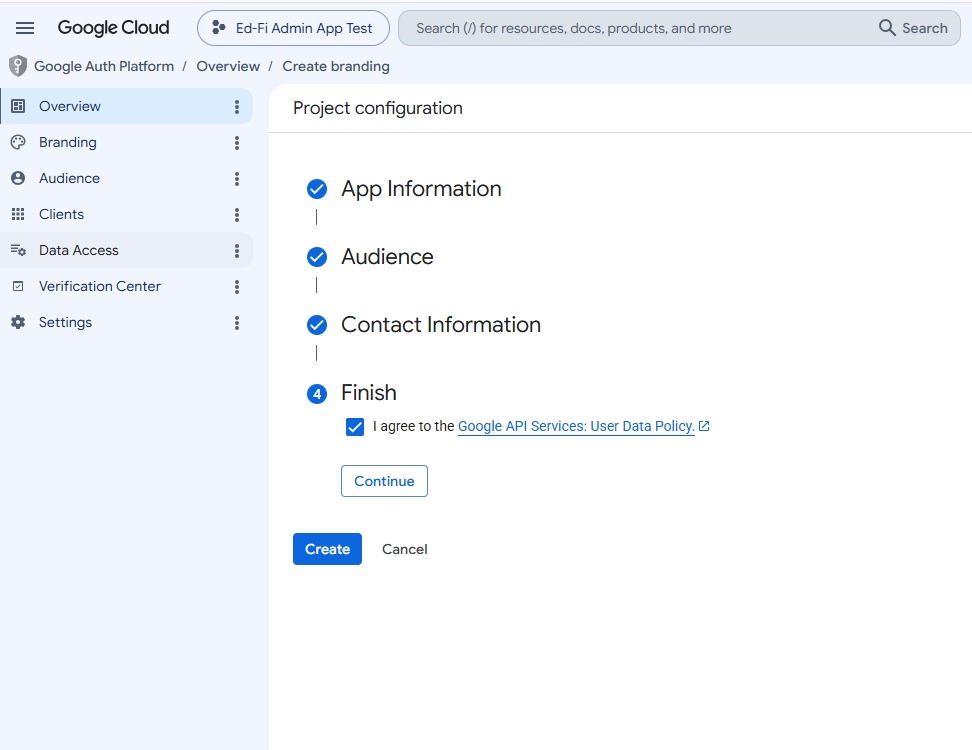
If only External appears, the project is not under your Workspace organization or your account is not a Workspace admin. External widens sign-in to any Google account and adds a verification/publishing flow — resolve the org/admin placement before continuing.
A3. Create the OAuth client ID
-
Go to APIs & Services → Credentials → Create Credentials → OAuth client ID.
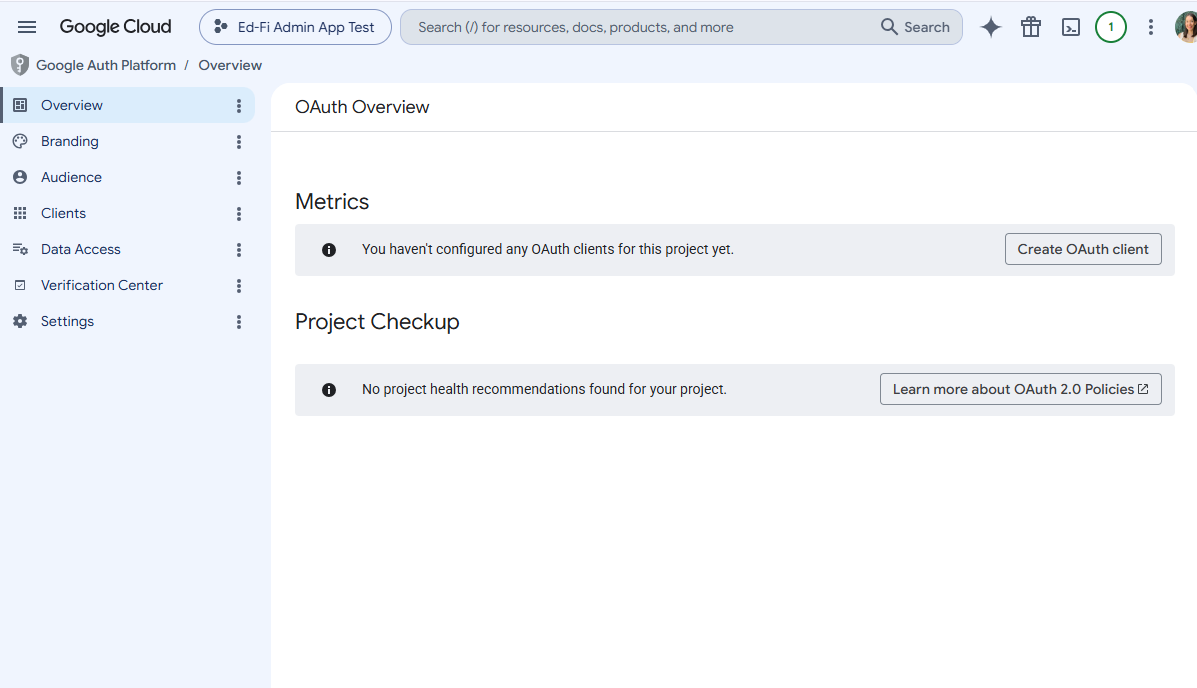
-
Application type: Web application.
-
Name: for example,
Ed-Fi Admin App v4. -
Authorized redirect URIs → add
https://<api-host>/api/auth/callback/<oidc-id>. For the two-site Windows/IIS layout, for examplehttps://localhost:3443/api/auth/callback/1. -
Authorized JavaScript origins: leave empty — the app uses the server-side Authorization Code flow.
-
Create.
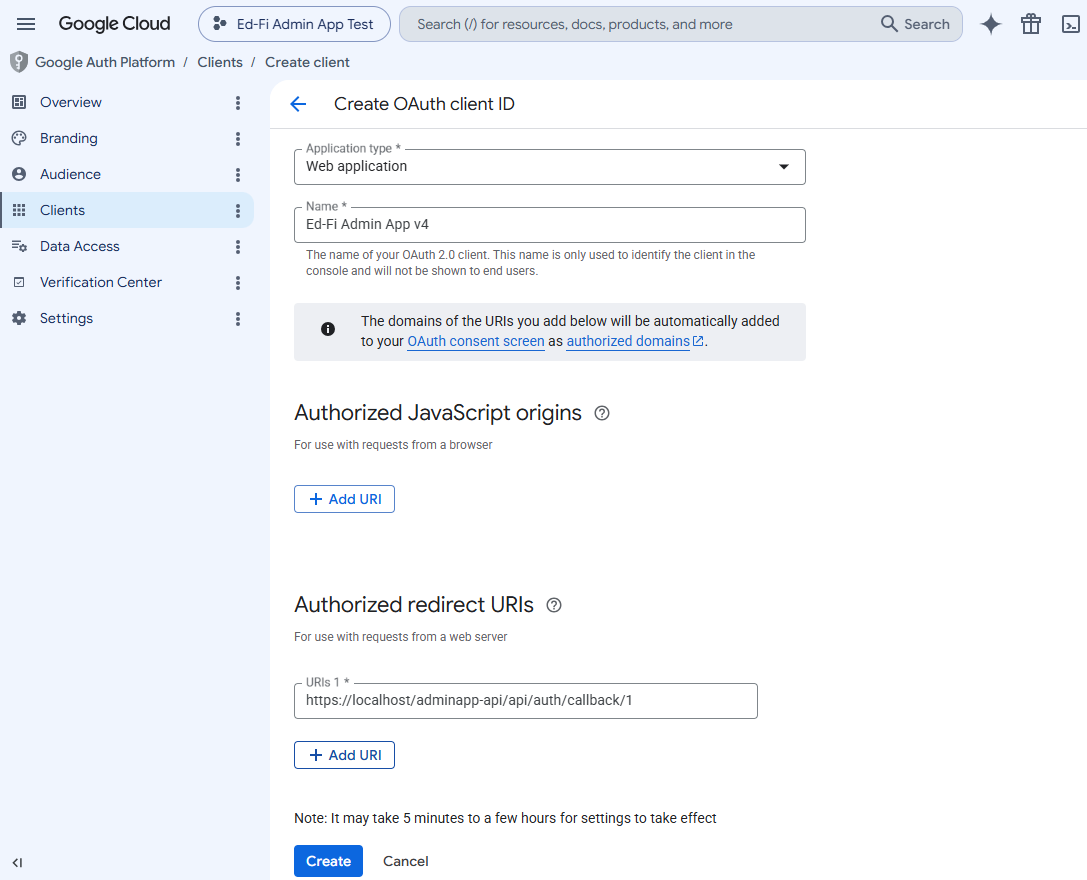
The redirect URI must match exactly (scheme, host, path, no extra trailing slash) or Google returns redirect_uri_mismatch. Google permits https://localhost as a redirect URI. <oidc-id> is 1 on a fresh single-provider install.
A4. Record the Client ID and Client Secret
Google shows the Client ID and Client Secret on creation and offers a JSON download; capture both (the JSON holds both under the web key). The secret can be retrieved again later from the client's detail page.
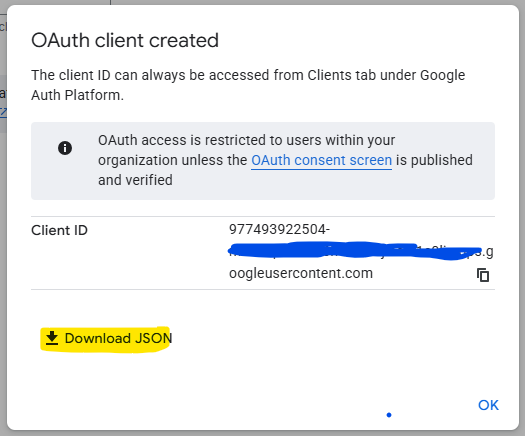
Treat the client secret as sensitive: keep it out of source control, tickets, and docs (use the placeholder <clientSecret> in shared material). For production, Google may require domain verification of the redirect URI domain (APIs & Services → Domain verification); this is not required for a localhost test.
| Admin App field | Google value |
|---|---|
issuer | https://accounts.google.com |
clientId | Client ID from the OAuth Credentials page |
clientSecret | Client secret from the OAuth Credentials page |
scope | openid profile email |
Part B — Configure the API (production.js)
SAMPLE_OIDC_CONFIG: {
  issuer:       'https://accounts.google.com',
  clientId:     '<googleClientId>',
  clientSecret: '<googleClientSecret>',
  scope:        'openid profile email',
},
USE_PKCE: true,
// First admin: must match the email Google sends for this person.
ADMIN_USERNAME: '<admin-email>',
Differences from the Keycloak example:
issuer→https://accounts.google.com(its discovery document is athttps://accounts.google.com/.well-known/openid-configuration).scope→openid profile email; theemailscope supplies the username claim. Keycloak returnsemailthrough its default client scopes even without an explicit scope, but Google requires theemailscope to be requested.clientId/clientSecret→ the OAuth client values from Part A.
A successful sign-in still fails with USER_NOT_FOUND unless a user with that email exists with a role. On a fresh install, startup seeding creates the admin from ADMIN_USERNAME with roleId 2 (Global admin) when the user table is empty. Set ADMIN_USERNAME to the admin's Google Workspace email — it must exactly match the email Google sends for that person.
Part C — Configure the frontend
Provider-specific frontend variables for Google (see Configuring Ed-Fi Admin App for the full set):
VITE_OIDC_ID=1— theoidcrow the login button targets.VITE_IDP_ACCOUNT_URL=https://myaccount.google.com/— the Account Management self-service link.
Do not point VITE_IDP_ACCOUNT_URL at admin.google.com or console.cloud.google.com — those are admin consoles, not end-user self-service.
Part D — Validate end-to-end
- Start the API so it registers the Google strategy.
- Open the Admin App at the frontend site, for example
https://localhost:4443, in a clean browser. - Login redirects to Google sign-in (consent for
openid profile email), then back through/api/auth/callback/<oidc-id>. - Confirm you land authenticated; the
emailclaim arrives populated with no optional-claim configuration needed.
| Symptom | Cause | Fix |
|---|---|---|
Invalid email from IdP | email claim empty | Confirm scope includes email; sign in with a real Workspace account |
USER_NOT_FOUND | admin not seeded with that email | Set ADMIN_USERNAME (Part B) |
NO_ROLE | user exists without a role | Assign a role (for example, roleId 2) |
redirect_uri_mismatch (from Google) | Google redirect URI does not match the callback | Make them match exactly (scheme, host, path) |
| Only External audience available | project not under the Workspace org, or not an admin | Create the project under the org with an admin account (A2) |
| Discovery error at API startup | wrong issuer | Confirm https://accounts.google.com |