How To: Deploy an Extension Plugin
In this example, you will learn how to install a pre-published extension plugin in your local development environment as well as in your production deployment environment. For details on how to create and publish extension plugin see How To: Create an Extension Plugin.
The steps can be summarized as:
- Install Sample extension in Development Environment
- Install Sample Extension in an Existing Production Environment
- Deploy Sample Extension Database Artifacts
- Step 1. Download EdFi.Suite3.RestApi.Databases
- Step 2. Update configuration.json
- Step 3. Run Deployment.psm1 with Dynamic Plugins
- Deploy Sample Extension Binaries to Web Server
- Step 4. Download EdFi.Suite3.Ods.Extensions.Sample
- Step 5. Verify API Landing Page in Browser
- Deploy Sample Extension Database Artifacts
Each step is outlined in detail, below.
Install Sample extension in Development Environment
Assuming that the Ed-Fi ODS / API has been successfully downloaded and is running in a local development environment per the instructions in the Getting Started documentation, pre-published Sample extension is now ready to be installed in your development environment. Note that ODS / API comes preconfigured with TPDM Core dynamic extension.
You may have to enable long path on your development environment to use this option.
Import the Initiallize Development Module:
PS C:\OSS-Workspace\Ed-Fi-ODS-Implementation\Application\EdFi.Ods.WebApi\> dotnet user-secrets set "Plugin:Folder"  "../../Plugin"
Successfully saved Plugin:Folder = ../../Plugin to the secret store.

PS C:\OSS-Workspace\Ed-Fi-ODS-Implementation\Application\EdFi.Ods.WebApi\> dotnet user-secrets set "Plugin:Scripts:0"  "tpdm"
Successfully saved Plugin:Scripts:0 = tpdm to the secret store.

PS C:\OSS-Workspace\Ed-Fi-ODS-Implementation\Application\EdFi.Ods.WebApi\> dotnet user-secrets set "Plugin:Scripts:1"  "sample"
Successfully saved Plugin:Scripts:1 = sample to the secret store.
To do so, simply open PowerShell and navigate to "
.\Initialize-PowershellForDevelopment.ps1
**Initdev**
This will execute configured script from secret.json to download sample extension plugin and deploy the plugin artifacts to local database.


After the successful execution of initdev, you will find the sample extension in

Run the "Ed-Fi-Ods.sln" solution from Visual Studio and verify that the sample data models are listed in your API landing page.

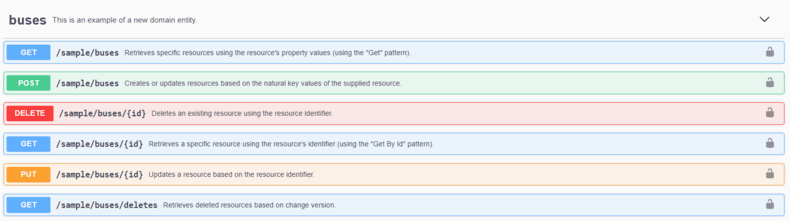
You can also verify the Sample API endpoints in the Swagger UI documentation:
Install Sample Extension in an Existing Production Environment
Deploy Sample Extension Database Artifacts
Step 1. Download EdFi.Suite3.RestApi.Databases
- Download the EdFi.Suite3.RestApi.Databases from Binary Releases.
- Change package extension from nupkg to zip.
- Right-click the zip file, click unblock and unzip the package.
Step 2. Update configuration.json
- Update configuration.json, for plugin settings as shown below:
"Plugin": {
    "Folder": "../../Plugin",
    "Scripts": [ "tpdm", "sample" ]
}
Step 3. Run Deployment.psm1 with Dynamic Plugins
- From PowerShell, navigate to the download directory and run the following command to install sample extension on your existing ODS database:
**Import-Module .\Deployment.psm1
Initialize-DeploymentEnvironment**


- After the successful execution, you will find sample schema tables in the deployed ODS database.

Deploy Sample Extension Binaries to Web Server
Step 4. Download EdFi.Suite3.Ods.Extensions.Sample
- Download the EdFi.Suite3.Ods.Extensions.Sample package from Binary Releases.
- Change extension from nupkg to zip.
- Right-click the zip, click unblock, and unzip the package.
- Copy the extracted folder and paste it in C:\inetpub\Ed-Fi\WebApi\Plugin in your WebAPI directory.

- Update appsettings.json, for plugin settings as shown below:
"Plugin": {
    "Folder": "./Plugin",
    "Scripts": [ "tpdm", "sample" ]
}
- Restart your IIS instance.
Step 5. Verify API Landing Page in Browser
- Browse to the API landing page and verify that sample data models are listed.
- You can also verify the Sample extension API endpoints in the Swagger UI documentation.