Year-Specific Installation Steps
This section describes how to set up the Ed-Fi ODS / API in year-specific mode. Before you proceed, make sure you have installed the prerequisites listed in Getting Started - Binary Installation.
Step 1. Download the Ed-Fi ODS / API Installer Packages
Package Links:
- EdFi.Suite3.Installer.WebApi
- EdFi.Suite3.Installer.SwaggerUI (Optional, not for production)
- EdFi.Suite3.RestApi.Databases
- Your extension plugin package (Optional)
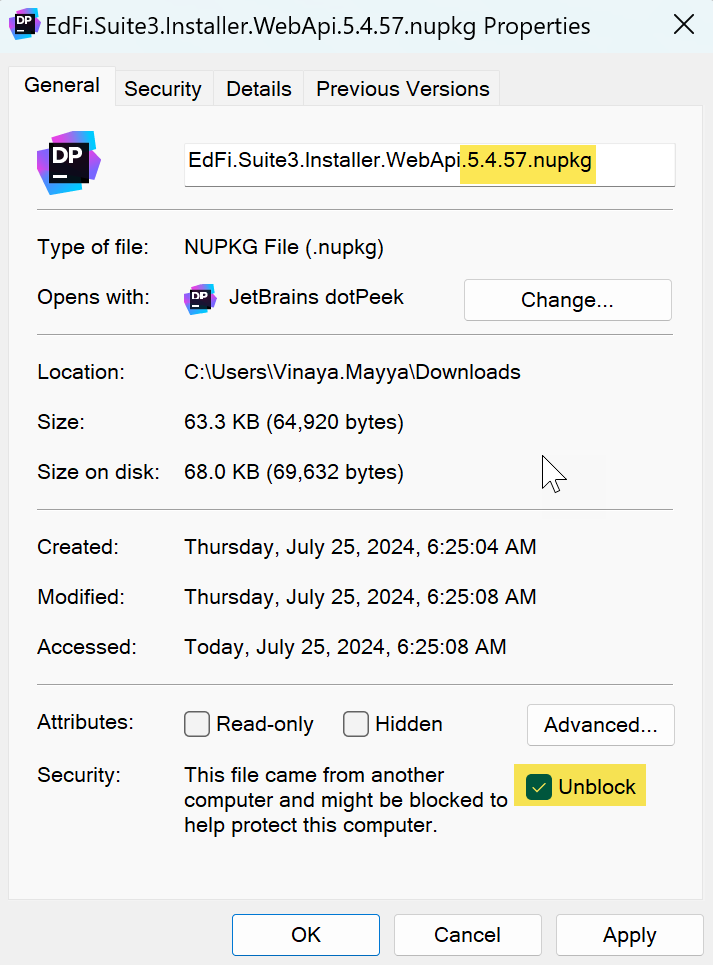
For each of the downloads, right-click and select "Properties." Update the file extension (from .nupkg to .zip). Remove the version number (optional). Check the box next to Unblock and click OK.
You may need to configure TLS while running the installation scripts described in steps below:
[Net.ServicePointManager]::SecurityProtocol += [Net.SecurityProtocolType]::Tls12
Step 2. Install the Ed-Fi Databases
Extract the contents of the EdFi.Suite3.RestApi.Databases package. The paths in these instructions assume that the package was extracted to a folder with the name of the package (e.g., C:\temp\EdFi.Suite3.RestApi.Databases).
Edit the configuration.json File
There are several settings in the configuration file that are left empty as they depend on whether you are opting for SQL Server or PostgreSQL backend. Update the settings by consulting the samples provided below.
SQL Server
"ConnectionStrings": {
  "EdFi_Ods": "server=(local);trusted_connection=True;database=EdFi_{0};Application Name=EdFi.Ods.WebApi",
  "EdFi_Security": "server=(local);trusted_connection=True;database=EdFi_Security;persist security info=True;Application Name=EdFi.Ods.WebApi",
  "EdFi_Admin": "server=(local);trusted_connection=True;database=EdFi_Admin;Application Name=EdFi.Ods.WebApi",
  "EdFi_Master": "server=(local);trusted_connection=True;database=master;Application Name=EdFi.Ods.WebApi"
},
"ApiSettings": {
  "Mode": "YearSpecific",
  "OdsTokens": [2021],
  "Engine": "SQLServer",
  "MinimalTemplateScript": "TPDMCoreMinimalTemplate",
  "PopulatedTemplateScript": "TPDMCorePopulatedTemplate"
}
PostgreSQL
"ConnectionStrings": {
  "EdFi_Ods": "host=localhost;port=5432;username=postgres;database=EdFi_{0};Application Name=EdFi.Ods.WebApi",
  "EdFi_Security": "host=localhost;port=5432;username=postgres;database=EdFi_Security;Application Name=EdFi.Ods.WebApi",
  "EdFi_Admin": "host=localhost;port=5432;username=postgres;database=EdFi_Admin;Application Name=EdFi.Ods.WebApi",
  "EdFi_Master": "host=localhost;port=5432;username=postgres;database=postgres;Application Name=EdFi.Ods.WebApi"
},
"ApiSettings": {
  "Mode": "YearSpecific",
  "OdsTokens": [2021],
  "Engine": "PostgreSQL",
  "MinimalTemplateScript": "TPDMCorePostgreSqlMinimalTemplate",
  "PopulatedTemplateScript": "TPDMCorePostgreSqlPopulatedTemplate"
}
Optional: Custom Extension Plugin Deployment Steps
Copy your extension plugin to the database deployment package. Place the extracted contents of your extension plugin package in the extracted EdFi.Suite3.RestApi.Databases package under Ed-Fi-ODS-Implementation\Plugin folder.

Enable your extension plugin in the deployment configuration. Edit the Plugin section of the configuration file and update the Folder and Scripts values to the following:
"Plugin": {
  "Folder": "../../Plugin",
  "Scripts": []
}
Run Installation Script
Open a PowerShell window in Administrator mode and navigate to the EdFi.Suite3.RestApi.Databases package folder.
Run the following PowerShell command to load modules for installation:
Import-Module .\Deployment.psm1
Next, execute the following command in PowerShell:
Initialize-DeploymentEnvironment
Step 3. Install WebApi
Extract the contents of the EdFi.Suite3.Installer.WebApi package. The paths in these instructions assume that the package was extracted to a folder with the name of the package (e.g., C:\temp\EdFi.Suite3.Installer.WebApi).
Prepare Installation Script
Open a PowerShell window in Administrator mode and navigate to the EdFi.Suite3.Installer.WebApi package folder. Run the following PowerShell command to load modules for installation:
Import-Module .\Install-EdFiOdsWebApi.psm1
The WebApi installer can take a number of parameters to tailor the installation experience. At a minimum, database connection info is required.
SQL Server
$parameters = @{
  PackageVersion = "5.4.2285"
  DbConnectionInfo = @{
    Engine = "SqlServer"
    Server = "localhost"
    UseIntegratedSecurity = $true
  }
  InstallType = "YearSpecific"
}
PostgreSQL
$parameters = @{
  PackageVersion = "5.4.2285"
  DbConnectionInfo = @{
    Engine = "PostgreSQL"
    Server = "localhost"
    Username = "postgres"
  }
  InstallType = "YearSpecific"
}
Paste the modified parameter code into your PowerShell window and hit Enter.
Run the Installation Script
Run the following command in the PowerShell window:
Install-EdFiOdsWebApi @parameters
Optional: Custom Extension Plugin Deployment Steps
Copy your extension plugin to deployed WebAPI. Place the extracted contents of your extension plugin package in C:\inetpub\Ed-Fi\WebApi\Plugin folder.
Enable your extension plugin in appsettings.json. Open the appsettings.json file found in C:\inetpub\Ed-Fi\WebApi and update the Plugin section as follows:
"Plugin": {
  "Folder": "./Plugin",
  "Scripts": []
}

Step 4. Install Swagger
Extract the contents of the "EdFi.Suite3.Installer.SwaggerUI" package. The paths in these instructions assume that the package was extracted to a folder with the name of the package (e.g., C:\temp\EdFi.Suite3.Installer.SwaggerUI).
Prepare Installation Script
Open a PowerShell window in Administrator mode and navigate to the "EdFi.Suite3.Installer.SwaggerUI" folder. Run the following PowerShell command to load modules for installation:
Import-Module .\Install-EdFiOdsSwaggerUI.psm1
The Swagger UI installer can take a number of parameters to tailor the install experience. At a minimum, WebAPI connection information is required.
$parameters = @{
  PackageVersion = "5.4.2272"
  WebApiVersionUrl = "https://YOUR_SITE_OR_SERVER_NAME_HERE/WebApi"
}
Paste the modified parameter into your PowerShell window and execute the code.
Run the Installation Script
Run the following command in the PowerShell window:
Install-EdFiOdsSwaggerUI @parameters
Step 5. Install Admin App
The Admin App provides a graphical interface for platform hosts to administer and manage non-sandbox instances of the Ed-Fi ODS / API. Follow the installation steps here to install Admin App for administration of Ed-Fi ODS / API in YearSpecific mode and then configure your year specific instances as described here. Alternatively, API keys and secrets can be administered by database administrators via SQL queries as outlined in the article How To: Configure Key / Secret.
Step 6. Restart your Website
Just a few more tasks to complete your installation:
- Open IIS (Press the Windows key
on your keyboard, type IIS, select Internet Information Services (IIS), and press Enter.)
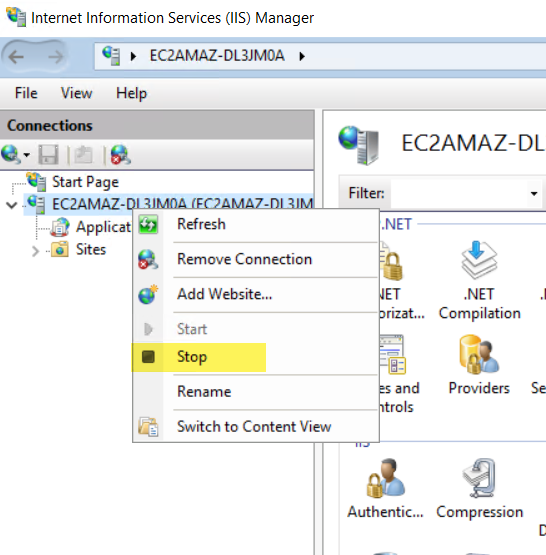
- Right-click on the server (alternatively, you can right-click the EdFi web site), and select Stop.
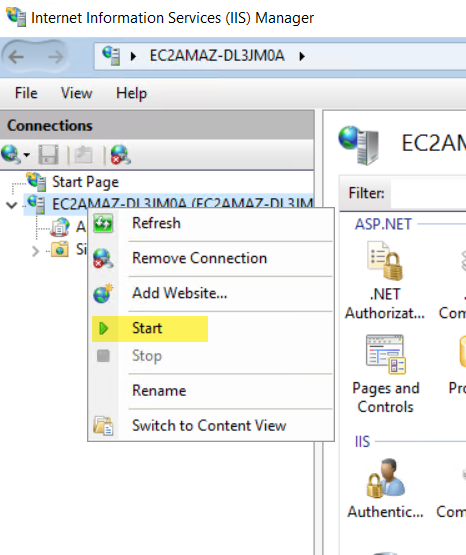
- Right-click the server (or EdFi website) again and select Start.
You are now ready to use the Ed-Fi ODS / API. The following URLs are available:
| Application | URL |
|---|---|
| Ed-Fi ODS / API | https://YOUR_SERVER_NAME_HERE/WebApi/ |
| Ed-Fi Admin App | https://YOUR_SERVER_NAME_HERE/AdminApp/ |
| Ed-Fi ODS / API Documentation (Optional, not for production) | https://YOUR_SERVER_NAME_HERE/SwaggerUI |