Using the Online Documentation
Online documentation for the Ed-Fi API is available through Swagger UI, which is a visual and interactive documentation suite providing detailed descriptions for each resource as well as a simple way to test calls to the API.
Swagger UI is an optional service in the Ed-Fi API v8 deployment. It must be
started explicitly using the -EnableSwaggerUI flag:
./bootstrap-local-dms.ps1 -EnableSwaggerUI
Once running, the Swagger UI is available at http://localhost:8082.
Gaining Access to the Documentation
Before using the Swagger UI, you must obtain an access token from the Configuration Service and authorize the Swagger session with it. See Authentication for the full token acquisition flow. In brief:
$response = Invoke-RestMethod -Method Post `
  -Uri "http://localhost:8081/connect/token" `
  -ContentType "application/x-www-form-urlencoded" `
  -Body @{
    client_id     = "your_key"
    client_secret = "your_secret"
    grant_type    = "client_credentials"
  }
$response.access_token
Once you have the token, click the Authorize button in the Swagger UI.

Figure 1. Authorize button
In the authorization dialog, enter the token value in the bearerAuth field and
click Authorize.
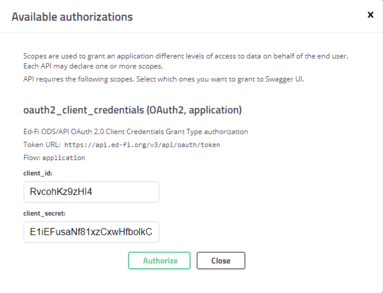
Figure 2. Swagger authorization dialog
Authorizing will allow the Swagger UI to pass the token in API calls made on your behalf.
Browsing All Resources
Resources are categorized into sections in the Swagger UI for easier browsing. The main sections are Resources and Descriptors. If the API host has configured profiles, a Profiles section will also appear.
The resources exposed are representative of entities from the Ed-Fi Data Standard, sharing names, organization, and definitions with the broader Ed-Fi ecosystem.
Detail follows about the API documentation sections.
Resources
The Resources section contains the main Ed-Fi API entities such as student,
school, grade, and assessment. Each resource maps one-to-one with Ed-Fi entities
except for domain aggregates, which wrap closely related entities into a single
endpoint. students and studentAssessments are examples of domain aggregates.
Descriptors
The Descriptors section represents the Ed-Fi Descriptors (e.g.,
academicSubjectDescriptors, accommodationDescriptors) from the Ed-Fi Data
Standard.
Profiles
If the API platform host has configured API profiles, you will see them listed alongside the other sections. Profiles restrict access to properties of a resource — properties may be read-write, read-only, or hidden for certain client applications.
For example, an assessment system might have read-only access to students and read-write access to other information in the assessment domain.
Viewing an Individual Resource
When expanding a resource, you will see that each resource is broken into sections based on the HTTP verbs supported.
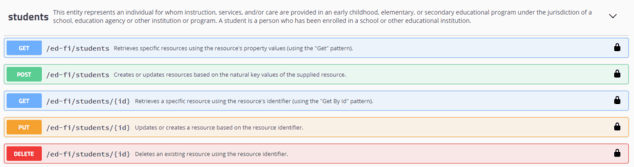
Figure 3. Supported verbs for the students resource
Model vs. Example Value
When the documentation for a GET operation is expanded, you will see the Example Value and Model options. The Model shows the type and description for each element within the resource. The Example Value shows an example of the JSON representation for the resource.
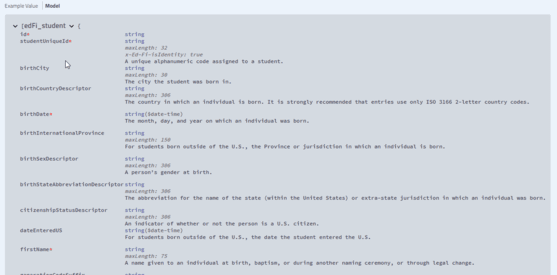
Figure 4. The Model schema for the students resource
Performing a Read and Write
To perform a read and write to the Ed-Fi API through the documentation UI, choose a resource and execute a GET by clicking the Try it out button. Then scroll down past the Parameters section and click the Execute button.
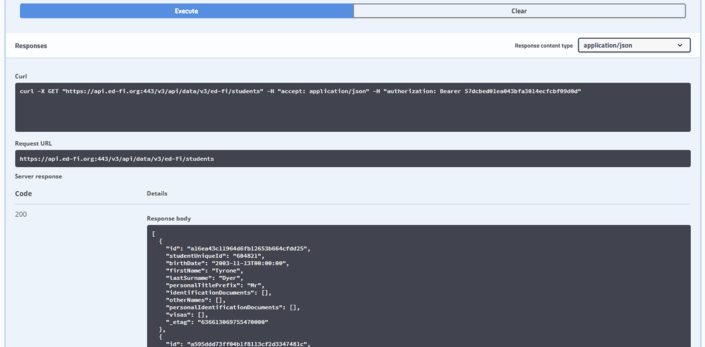
Figure 5. The result of a sample GET operation for the students resource
To explore further, choose one of the returned resources and copy a single
student from the JSON results. Next, expand the POST section of students and
click the Try it out button. Then paste the copied JSON into the associated
POST text area, overwriting the Example value. Remove the _etag and id,
modify some of the remaining values, and click Execute for the POST. If the
return code indicates a successful operation, a subsequent GET operation will
return the modified resource with a new _etag.
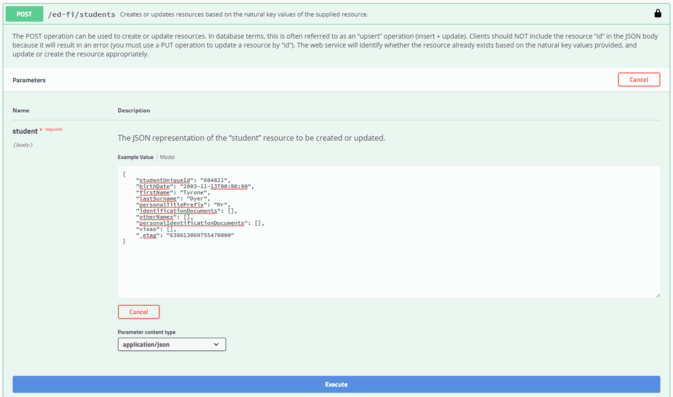
Figure 6. A sample POST operation for the students resource
Checking for Errors
After executing an operation, an HTTP status code is displayed that shows the result of the operation along with a message where applicable. The system sends response codes along with human-readable error messages.
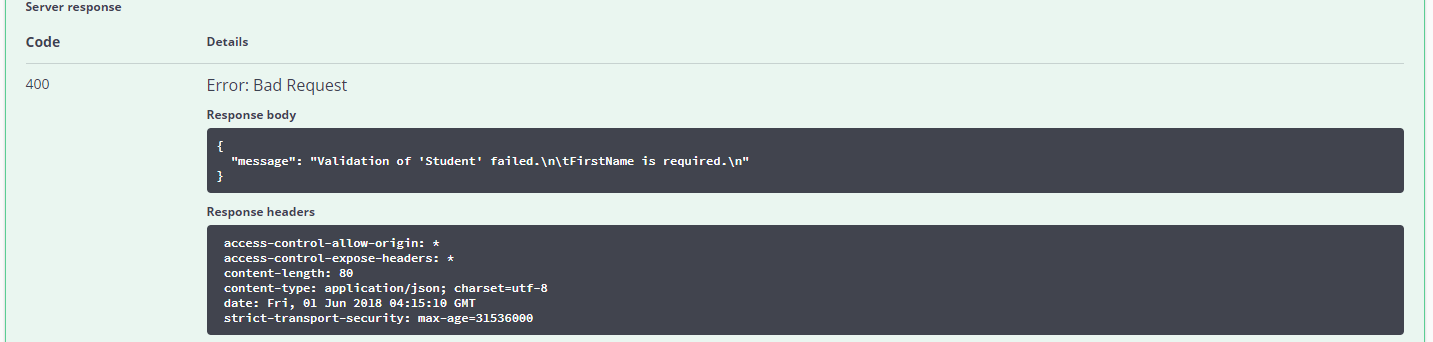
Figure 7. A sample 400 response accompanied by an error message
Identifying Resources that Support Natural Key Updates
The Ed-Fi API allows natural key updates on selected resources using the PUT operation. The natural language description of the PUT verb for a resource indicates whether natural key updates are supported.

Figure 8. Natural language description of PUT operation in section
resource indicating that the resource supports natural key updates

Figure 9. Natural language description of PUT operation in reportCards
resource indicating that the resource does not support natural key updates
In addition, the resources that allow natural key updates can be identified
through the "x-Ed-Fi-isUpdatable": true extension in the OpenAPI metadata for
their PUT verb, which is visible in the Swagger documentation.
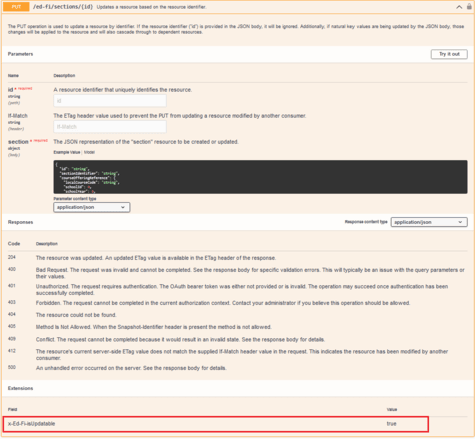
Figure 10. x-Ed-Fi-isUpdatable field on section resource indicating
that the resource supports natural key updates
Developer Tools
To view the full request and response including the JSON and header values, you can use the developer tools included with the browser (typically opened with F12 in most browsers).