Admin App v3.3
Before You Install
This section provides general information you should review before installing the Ed-Fi ODS / API Admin App v3.3 for ODS/API 3.4 to 6.2.
Compatibility & Supported ODS / API Versions
This version ODS / API Admin App has been tested and can be installed for use with the Ed-Fi ODS / API 3.4 to 6.2. See the Ed-Fi Technology Suite Supported Versions for more details.
Admin App supports two deployment modes: Docker Deployment and On-Premise Installation, as documented below. Please choose the deployment mode that fits your environment.
Docker Deployment for Admin App
Docker image for Admin App 3.3 is available at: https://hub.docker.com/r/edfialliance/ods-admin-app
Please refer Docker Deployment - Ed-Fi Tools - Ed-Fi Tech Docs for more details.
On-Premise Installation
Prerequisites
The following are required to install the Admin App:
-
The Admin App provides an interface to administer an Ed-Fi ODS / API. Understandably, you must have an instance of the supported Ed-Fi ODS / API deployed and operational before you can use the Admin App. Tested configurations include on-premises installation via binary installation or source code installation.
-
Both the .NET 8 SDK and .NET 8 Hosting Bundle are required on the destination server before installation of Admin App.
- After installing the .NET Core SDK and the .NET Core SDK, it is necessary to restart the computer for the changes to take effect.
-
A SQL Server 2012 or higher, or Postgres 11 or higher database server as also in use with your ODS / API v6.0 installation.
-
IIS must be enabled before installing .NET Core Hosting Bundle.
-
A modern web browser such as Google Chrome, Mozilla Firefox, or Microsoft Edge. Internet Explorer 11 (a pre-installed browser on Windows Server) may load, but may not function when using Admin App.
Admin App does not today support in-place upgrades from prior versions. Please install a fresh copy of Admin App to upgrade from prior versions.
Required Information
You will need the following information to complete this installation:
- The location of your Ed-Fi ODS / API.
- Administrator access and credentials for either on-premises or Azure environment with target Ed-Fi ODS / API.
Installation Instructions
This section provides step-by-step instructions for installation. The specific steps are different depending on the deployment model and version of your Ed-Fi ODS / API.
On-Premises Deployment
Each step is outlined in detail below for the PowerShell deployment. Ensure that you have permission to execute PowerShell scripts. For more information, see about_Execution_Policies.
Step 1. Download and Open Installer Package
Download the following NuGet packages. Rename the file extension to .zip to open.
Optional:
Step 2. Configure Installation File
Open the "install.ps1" file on installer folder in a text editor. You will need to edit this file with your configuration details. If a value is not present for any of the parameters, it will use its default value.
Editing Item 3b below is mandatory for ODS / API URL and must be done for installation to complete.
-
Configure
$dbConnectionInfo. These values are used to construct the connection strings.-
Server. The name of the database server. For a local server, we can use "(local)" for SQL and "localhost" for PostgreSQL. -
Engine.Admin App supports SQL and PostgreSQL database engines. So setting up theEnginewill decide which database engine to be used. Valid values are "SQLServer" and "PostgreSQL". -
UseIntegratedSecurity.Will either be "$true" or "$false".- If you plan to use Windows authentication, this value will be "$true"
- If you plan to use SQL Server/ PostgreSQL server authentication,
this value will be "$false" and the Username and
Passwordmust be provided.
-
Username. Optional. The username to connect to the database. IfUseIntegratedSecurityis set to $true, this entry is not needed -
Password. Optional. The password to connect to the database. IfUseIntegratedSecurityis set to $true, this entry is not needed -
Port.Optional. Used to specify the database server port, presuming the server is configured to use the specific port.
-
-
Configure
$adminAppFeatures. These values are used to set Optional overrides for features and settings in the web.config.-
ApiMode.Possible values:sharedinstance,districtspecificandyearspecific. Defaults tosharedinstance -
SecurityMetadataCacheTimeoutMinutes. Optional. Defaults to 10 minute security metadata cache timeout.
-
-
Configure
$p. This is the variable used to send all the information to the installation process.-
ToolsPath. Path for storing installation tools, e.g., nuget.exe. Defaults to "C:/temp/tools" -
OdsApiUrl. Base URL for the ODS / API. Mandatory. -
AdminDatabaseName. ,OdsDatabaseName,SecurityDatabaseName. Optional. Specify only if ODS / API was set with a custom database name.- For example, when configuring the
OdsDatabaseName, the value here will be the name of the ODS database, whereas theAdminDatabaseNameandSecurityDatabaseNamewill be the name of the Admin and Security databases, respectively.
- For example, when configuring the
-
WebApplicationName.Optional. Defaults to "AdminApp". -
WebSitePort. Optional. Defaults to 443. -
WebsiteName. Optional. Defaults to "Ed-Fi". -
PackageVersion. Optional. If not set, will retrieve the latest full release package.
-
Configuration samples for the "install.ps1" file:
- SQL Server Shared Instance
- PostgreSQL District Specific
- SQL Server Year Specific
 $dbConnectionInfo = @{
  Server = "(local)"
  Engine = "SqlServer"
  UseIntegratedSecurity = $true
 }

 $p = @{
  DbConnectionInfo = $dbConnectionInfo
  OdsApiUrl = "<https://localhost:54746>"
 }
 $dbConnectionInfo = @{
  Server = "localhost"
  Engine = "PostgreSQL"
  Username = "exampleAdmin"
  Password = "examplePassword"
 }

 $adminAppFeatures = @{
  ApiMode = "districtspecific"
 }

 $parameters = @{
  DbConnectionInfo = $dbConnectionInfo
     OdsApiUrl = "<https://localhost:54746>"
     AdminAppFeatures = $adminAppFeatures
 }
$dbConnectionInfo = @{
 Server = "(local)"
 Engine = "SqlServer"
 UseIntegratedSecurity = $true
}

$adminAppFeatures = @{
 ApiMode = "yearspecific"
}

$p = @{
 DbConnectionInfo = $dbConnectionInfo
 OdsApiUrl = "<https://localhost:54746>"
    AdminAppFeatures = $adminAppFeatures
}
Step 3. Open a PowerShell Prompt in Administrator Mode
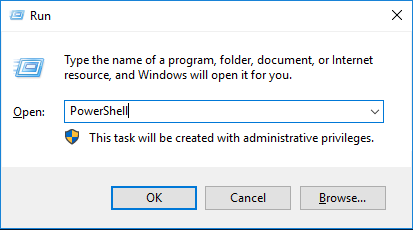
Method 1: Open
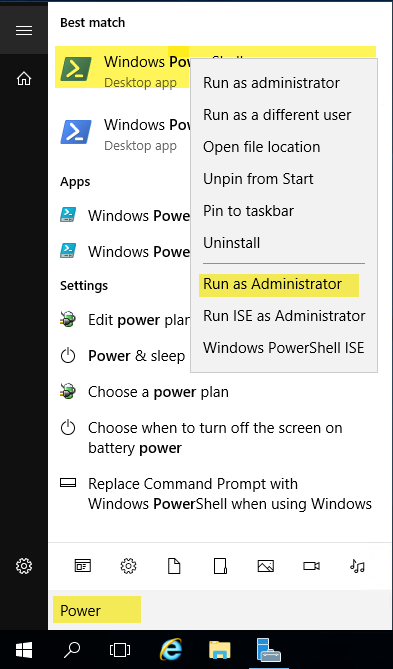
Method 2: Click on the Windows icon in the lower-left corner. Type "PowerShell" and right-click the "Windows PowerShell" option when provided. Select "Run as Administrator" to open a PowerShell prompt in Administrator mode.
Change the directory to the unzipped directory for the Admin App Installer.
Step 4. Run the Installation via PowerShell
Run "install.ps1" script.
Database login setup on integrated security mode
During the installation process, you will be prompted to choose database login details. Entering "Y" will continue with default option( Installation process will create IIS APPPOOL\AdminApp database login on the server).
Choosing 'n' will prompt you to enter windows username. The installation process will validate and create database login using entered username, if the login does not exist on the database server already.


Please refer Steps 5 and 6 for more details on verifying the database login and setting up the application pool identity.
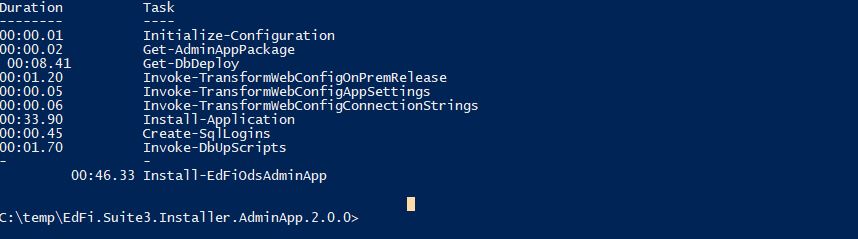
The PowerShell output will look something like the following:
Step 5. Create SQL Server Login (if "useIntegratedSecurity" set to "true")
This step only needs to be completed if you set useIntegratedSecurity to true on the "install.ps1" script in Step 2, above. If you did not, we can skip ahead to Step 5.
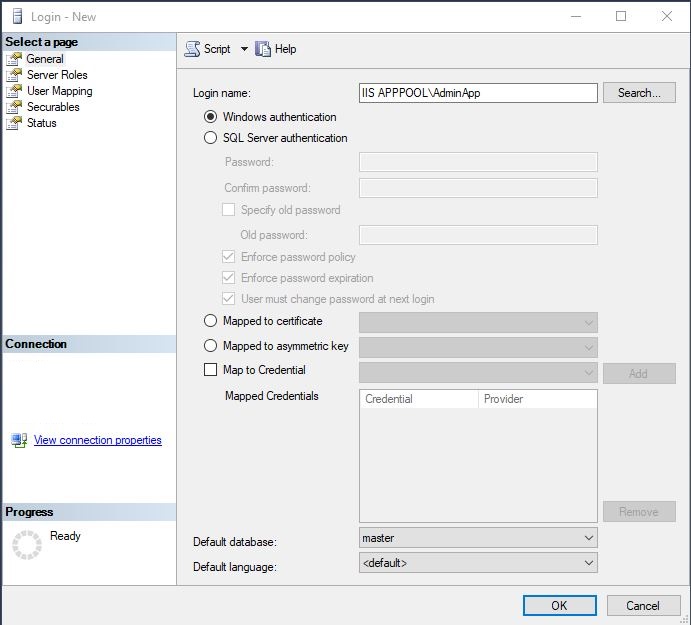
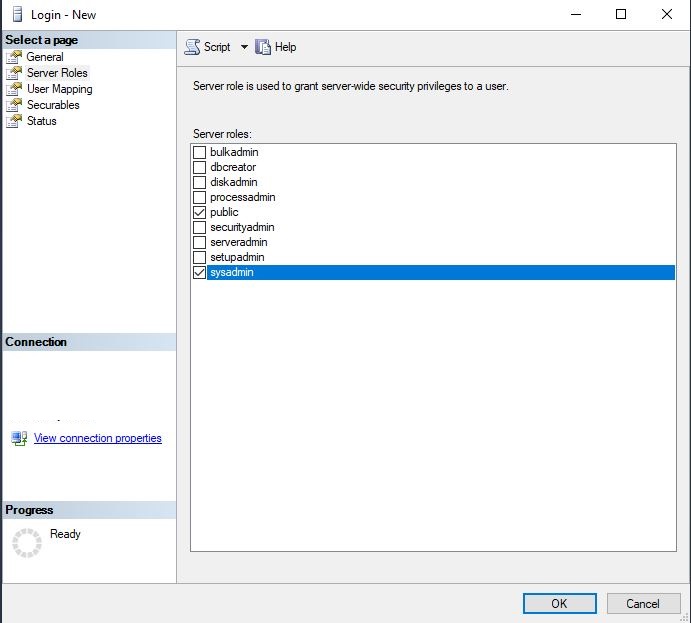
The installation process sets up an appropriate SQL Login for use with the dedicated AdminApp Application Pool in IIS. You can verify this in SQL Server Management Studio:
-
On the Server Roles page, make sure that "public" and "sysadmin" checkboxes are checked. Once you have confirmed a proper SQL Server login exists, continue to the next step.
Step 6. Update Application Pool Identity (Optional)
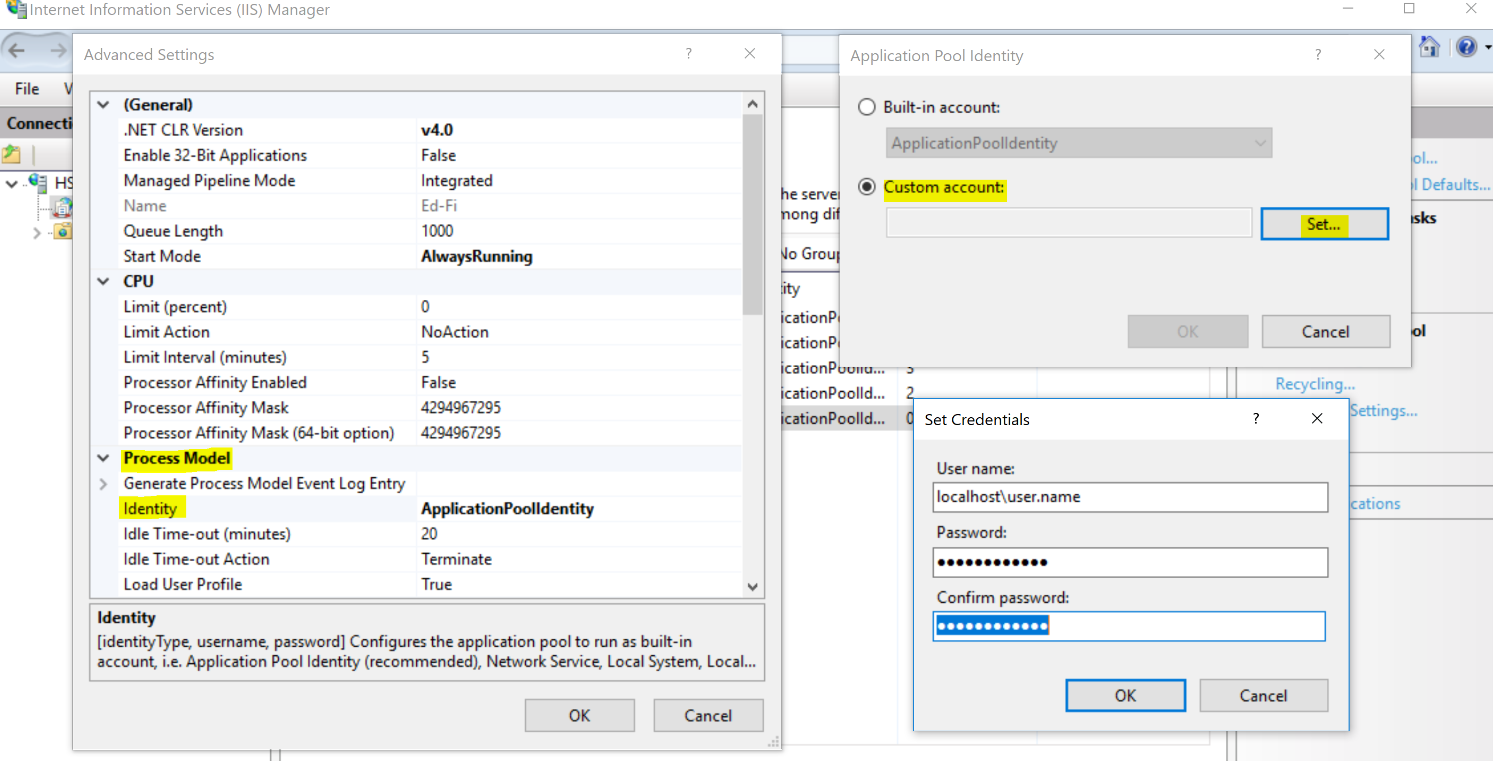
As mentioned on Step 5, installation process sets up an appropriate SQL Login for use with the dedicated AdminApp Application Pool in IIS. If you would like to use the default "ApplicationPoolIdentity", then you can skip this bit.
Else in the same Advanced Settings window, click on the browse icon under Process Model > Identity. We'll choose the custom account option and click "Set...". When setting the credentials, you can just use the username and password that you use to log in to Windows. If you need to include the app pool domain in the username, then the username can look something like this: "localhost\username", where "localhost" is the app pool domain. Once we have entered the correct credentials, we'll click OK on all screens until we're back to the main Application Pools page.
Step 7. Check Folder Permissions
Folders to verify:
-
Admin App application "uploads" folder (default folder path: C:\inetpub\Ed-Fi\AdminApp\uploads).
-
Admin App log folder (default folder path: C:\ProgramData\Ed-Fi-ODS-AdminApp).
For checking permissions:
-
Right-click the folder, choose Properties, view the Security tab.
-
Verify the "Group or user names" section has AdminApp with Full control.
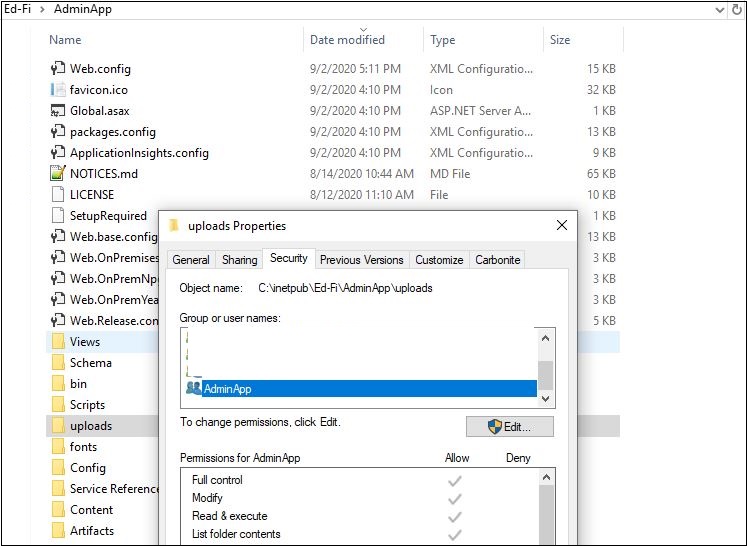
If the AdminApp not available on the list, add with Full control.
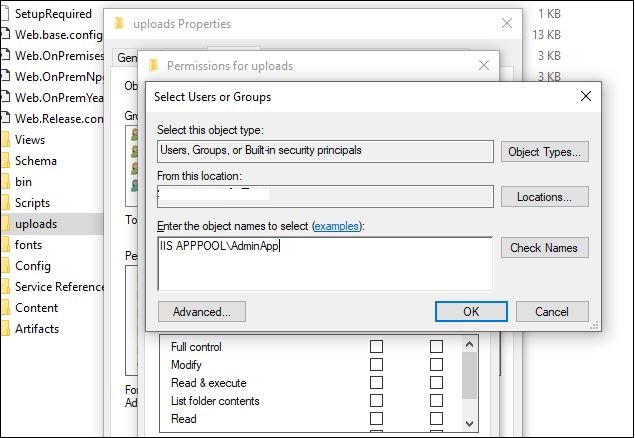
Note: If you choose custom login over default Application Pool Identity ( Refer Step 6 for more details), then make sure the custom login has full control on the above mentioned folders.
Step 8. Create Initial Administrative User
Upon first launch of the Admin App, you will have to create the initial administrative user for the application. This consists of creating a username and password for the initial user. Additional users can be added at a later time. Please see Securing the Admin App for more information.
Step 9. Open Admin App to Complete Installation
The installation will default to https://<machinename>/AdminApp.
To verify and launch the Admin App, open "Internet Information Services
(IIS) Manager". Open the server name, open the Sites folder and open the
Ed-Fi branch. Observe three web applications have been installed for the
Ed-Fi Tech Suite. Clicking on "AdminApp", use Manage Application to view the
configured URL. Click on "Browse <servername>" to launch Admin App.
Step 10. Using the Admin App
The Admin App is now configured for use with your Ed-Fi ODS / API instance. Please visit the following articles to help with next actions in using Admin App: